Client‑Side Human Identification for Mobile
Human Identity by Wallarm is a client-side service that verifies whether requests to your applications come from real users or automated tools. It covers web and mobile platforms — this article describes the Mobile Antibot component.
Overview
Mobile Antibot is a native SDK (iOS / Android) that verifies device integrity using hardware-backed attestation. It proves that a critical action (e.g., login, checkout) originates from a genuine, untampered application running on a real physical device — not from an emulator, a rooted phone, or a repackaged app binary.
The SDK obtains a short-lived (~30 seconds) token and signs the request body immediately before each protected action. This cycle (getToken() → signRequestBody() → send request) is repeated for every critical operation — the token is not reused across multiple API calls.
Even when the server's verdict is to block the device, the SDK still returns a well-formed JWT with a blocked claim — enforcement happens on your backend or Wallarm Node, not in the SDK.
Depending on your setup, the result can be enforced by Wallarm's modules or by your own backend logic.
Where mobile antibot adds value
Native mobile applications face threats that browser-based detection cannot address. Bots run on emulator farms, rooted devices, repackaged app binaries, and scripted API clients that bypass the app entirely.
These threats lead to:
-
Account takeover via credential stuffing from emulator farms
-
Fake account creation at scale from scripted environments
-
Checkout and inventory abuse from automated API clients
-
API probing from tampered app binaries
Mobile Antibot solves these problems by verifying the device hardware before the action is processed. Deploy it in your native iOS / Android application to protect high-value actions:
| Use case | What happens |
|---|---|
| Login | Verifies that each authentication attempt comes from a real device, not an emulator farm. |
| Checkout | Prevents automated purchases from scripted environments. |
| Account creation | Blocks fake account registration from emulators and tampered apps. |
| Any critical action | Protects password reset, payment confirmation, or other sensitive operations. |
How it works
The SDK communicates with the Human Identification Server in two steps: first it requests a challenge, then it submits a hardware attestation proof.
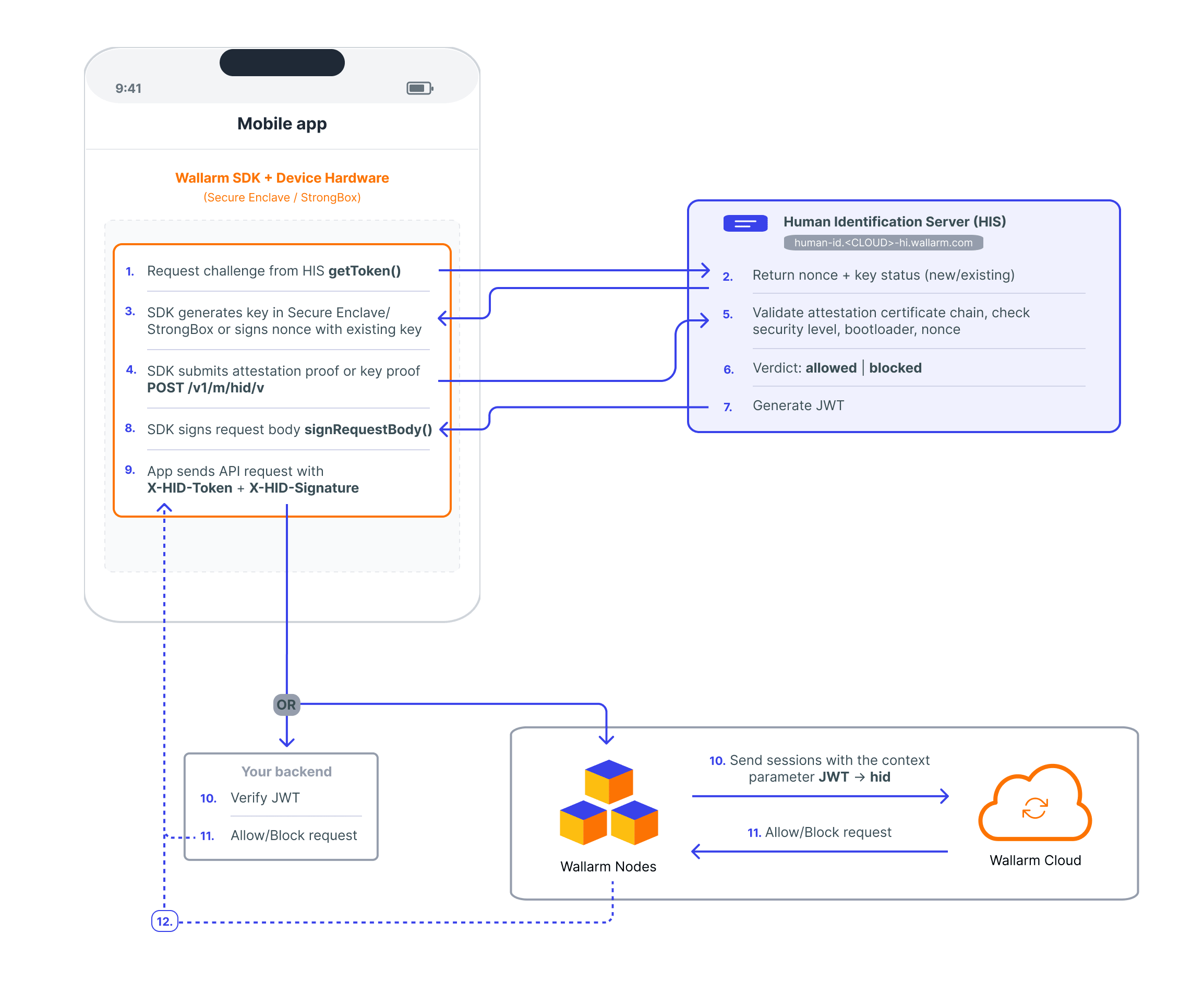
Step-by-step flow
-
Challenge
The SDK sends a challenge request to the Human Identification Server (POST /v1/m/hid/c) with the app ID, device ID, and platform. The server returns a nonce and a key status:new(first time) orexisting(returning device). -
Attestation or key proof
- New device: the SDK generates a key pair inside the device hardware (Secure Enclave on iOS, StrongBox/TEE on Android). The private key never leaves the hardware. The SDK requests a hardware attestation certificate from the OS and submits it to the server (
POST /v1/m/hid/vwithtype: "attestation"). - Returning device: the SDK proves it still holds the previously registered private key by signing the challenge nonce (
POST /v1/m/hid/vwithtype: "key_proof"). No full re-attestation needed.
- New device: the SDK generates a key pair inside the device hardware (Secure Enclave on iOS, StrongBox/TEE on Android). The private key never leaves the hardware. The SDK requests a hardware attestation certificate from the OS and submits it to the server (
-
Server verification
The Human Identification Server (hosted and managed by Wallarm) validates the attestation:- Android: verifies the certificate chain, parses Key Attestation Extension, checks security level (StrongBox/TEE), bootloader lock status, and nonce.
- iOS: verifies the App Attest attestation object, validates the AAGUID, and checks the nonce.
-
Token issuance
On success, the server returns a signed JWT and the SDK makes it available to your code. On failure, the SDK returns an empty token (isPresent = falseon Android) or throws aHumanIDError(iOS) so your app can handle it accordingly. -
Request signing
The SDK signs the request body of the critical action with the hardware-protected private key. This produces a signature proving the device still holds the key — preventing token theft and replay. Both the token and the signature are attached to the request as headers. -
Enforce
How you enforce depends on your setup. If you use a Wallarm Node inline, the token and signature headers are forwarded automatically. If you use your own backend, verify the JWT and optionally the per-request signature.
SDK functions
| Function | What it does |
|---|---|
HumanIDSDK.init(context, config) |
Initializes the SDK. Returns a HumanIDSession. Call once at app startup. |
session.getToken() |
Performs the full challenge-response attestation and returns a HumanIDToken. Call before each critical action. |
session.signRequestBody(body) |
Signs the request body with the hardware-protected key. Returns a base64-encoded signature string for the X-HID-Signature header. Call for each critical request. |
HumanIDToken:
| Property | Type | Description |
|---|---|---|
value |
String | The JWT token string. |
expiresAtEpochSec |
Long | Token expiration as Unix timestamp. |
isPresent |
Boolean | false if token acquisition failed. |
| Function | What it does |
|---|---|
HumanIDSDK(config:) |
Creates and configures the SDK instance. Call once at app startup. Throws HumanIDConfigError if applicationID is blank. |
sdk.getToken() |
Performs the full challenge-response attestation and returns a HumanIDToken. Call before each critical action. |
sdk.signRequestBody(body) |
Signs the request body with the hardware-protected key. Returns the X-HID-Signature header value. Requires a successful getToken() call first. |
HumanIDToken:
| Property | Type | Description |
|---|---|---|
value |
String | The JWT token string. |
expiresIn |
Int | Token lifetime in seconds. |
Error handling:
All SDK methods throw HumanIDError (typed throws). Handle errors as follows:
do {
    let token = try await sdk.getToken()
    let signature = try await sdk.signRequestBody(body)
    // ...
} catch {
    switch error {
    case .getTokenFailed(let message):
        logger.error("getToken failed: \(message)")
    case .signRequestBodyFailed(let message):
        logger.error("signRequestBody failed: \(message)")
    case .unknownError(let message):
        logger.error("unexpected SDK error: \(message)")
    }
}
Request headers
The SDK attaches two headers to protected API requests:
| Header | Description |
|---|---|
X-HID-Token |
The JWT from getToken(). |
X-HID-Signature |
Per-request body signature from signRequestBody(). Proves the device still holds the hardware key. |
Platform details
| iOS | Android | |
|---|---|---|
| Min version | iOS 18+ | Android 9+ (API level 28) |
| Attestation mechanism | App Attest via Secure Enclave | Key Attestation via StrongBox or TEE |
| Security levels | Production / Development (AAGUID-based) | StrongBox (highest) → TEE (default) → Software (rejected by default) |
| Key storage | Secure Enclave | StrongBox (dedicated security chip) or TEE (ARM TrustZone) |
Setup
Step 1: Get your credentials and SDK
Contact sales@wallarm.com to enable Human Identity. Provide the application(s) you plan to protect and the platforms you need (iOS, Android, or both).
The Wallarm team will provide:
-
Human Identification Server endpoint:
https://mobile.us-hi.wallarm.com -
Application ID — identifies your application in the HIS and links requests to your configuration.
-
Mobile SDK package:
- iOS: XCFramework
- Android:
.aarlibrary
The SDK is provided directly by the Wallarm team during onboarding — it is not available in public package registries.
Supported platforms: iOS 18+ / Android 9+ (API level 28).
Step 2: Add the SDK to your project
Add the provided .xcframework to your Xcode project:
- Drag the
.xcframeworkfile into your project navigator. - In your target's General → Frameworks, Libraries, and Embedded Content, ensure it is set to Embed & Sign.
Step 3: Initialize the SDK and protect critical actions
Initialize the SDK once at app startup. Then, before each critical action, call getToken() and signRequestBody() to obtain a fresh token and sign the request. The token is short-lived (~30 seconds) and must not be reused across multiple actions.
import com.wallarm.humanid.HumanIDConfig
import com.wallarm.humanid.HumanIDSDK

// Initialize once at app startup
val config = HumanIDConfig(
    clientIDKey = "YOUR_APP_ID",
    serverUrl = "https://mobile.us-hi.wallarm.com"
)
val session = HumanIDSDK.init(context = applicationContext, config = config)

// Before EACH critical action (e.g., login, checkout):
val token = session.getToken()

if (token.isPresent) {
    val bodyBytes = requestJson.toByteArray()
    val signature = session.signRequestBody(bodyBytes)

    request.addHeader("X-HID-Token", token.value)
    request.addHeader("X-HID-Signature", signature)
}

// Repeat getToken() + signRequestBody() for every critical request
import WallarmHumanIDSDK

// Initialize once at app startup
let config = try HumanIDConfig(
    cloud: .us,
    applicationID: "YOUR_APP_ID"
)
let sdk = HumanIDSDK(config: config)

// Before EACH critical action (e.g., login, checkout):
do {
    let token = try await sdk.getToken()
    let signature = try await sdk.signRequestBody(bodyData)

    request.setValue(token.value, forHTTPHeaderField: "X-HID-Token")
    request.setValue(signature, forHTTPHeaderField: "X-HID-Signature")
} catch {
    // error is typed as HumanIDError — see SDK functions section
}

// Repeat getToken() + signRequestBody() for every critical request
One token per action
Do not obtain a token once and reuse it for multiple API calls. Each critical action requires its own getToken() + signRequestBody() cycle. The token is short-lived (~30 seconds) and bound to the specific request.
Step 4: Enforce
There are 2 approaches — choose based on your infrastructure:
If you have a Wallarm Node deployed inline — receiving all traffic after the Mobile Antibot SDK has attached the headers — you can use the device identity from the token as a session context parameter, enabling enforcement by device fingerprint across Wallarm's modules.
Set up session tracking by device identity:
-
Ensure the
X-HID-Tokenheader reaches the Node. The SDK attaches it automatically. If your mobile app communicates with your backend through the Wallarm Node, no additional code is needed. -
Add the device identifier as a session context parameter. In Wallarm Console, go to API Sessions → Session context parameters and add a new parameter. Set the path to the device identity claim inside the JWT in the
X-HID-Tokenheader, e.g.:Request→Header→X-HID-Token→JWT→jwt_payload→PROPERTY→hid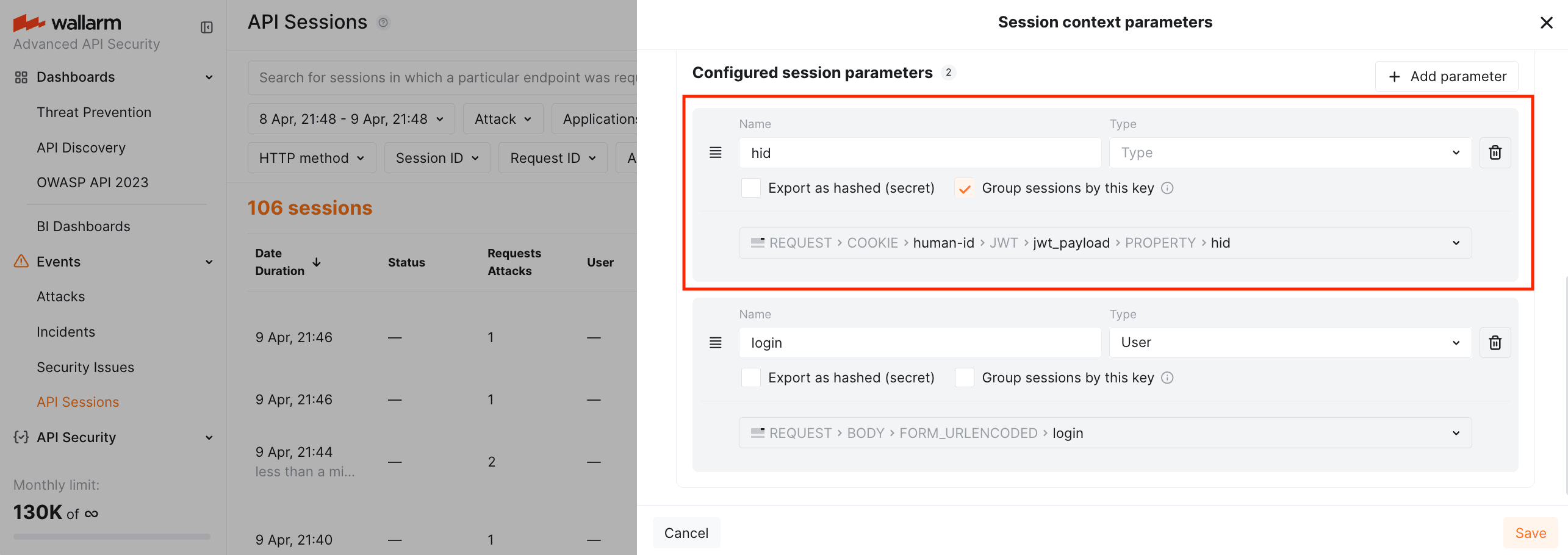
Enable Group sessions by this key so that sessions are grouped by device fingerprint rather than by IP alone.
Once configured, this becomes available across Wallarm's enforcement mechanisms:
-
Visibility: in API Sessions, filter and inspect sessions grouped by device identity. This reveals patterns invisible when grouping by IP — for example, the same device rotating through multiple IPs.
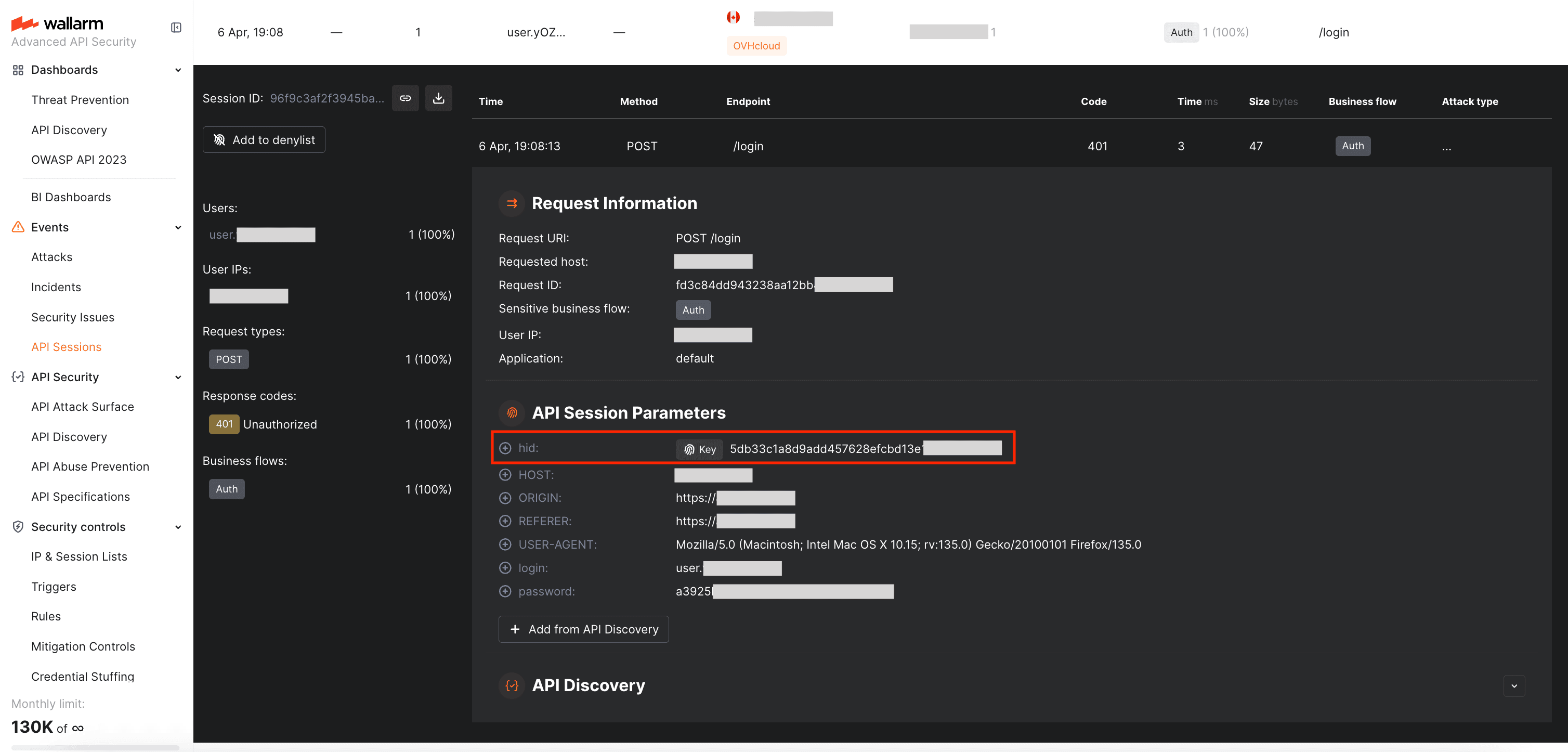
-
Anonymous session tracking: the device identity from the token identifies the device before the user logs in. Without it, pre-authentication traffic has no stable identifier — only IP, which attackers rotate. With device identity as a grouping key, Wallarm builds sessions from anonymous requests, and all enforcement mechanisms listed below can be applied to these sessions.
- Session denylist: block a specific device session via Session Denylist.
- API Abuse Prevention: when API Abuse Prevention is configured with the Denylist session reaction and sessions are grouped by device identity, the module analyzes behavioral patterns within sessions. If bot behavior is detected, the session is added to the Session Denylist — blocking all subsequent requests from the same device, regardless of IP rotation.
- Brute force protection: configure a Brute Force Protection rule that limits attempts per device identity. If the same device exceeds the threshold, the session is blocked.
Your backend verifies the token and decides how to handle the request.
For each protected request:
-
Fetch the JWKS public key from the Human Identification Server:
- US Cloud:
GET https://mobile.us-hi.wallarm.com/.well-known/jwks.json
- US Cloud:
-
Verify the JWT signature.
- Check the token expiration.
- Optionally, verify the
X-HID-Signatureheader against the request body to confirm the request was not tampered with in transit.
Step 5: Test the integration
Verify that tokens are issued correctly:
-
Launch your app on a real device and trigger a protected action.
-
Verify that both
X-HID-TokenandX-HID-Signatureheaders are present in the API request. -
Confirm that
token.isPresent == true(Android) orgetToken()returns without error (iOS). -
Test with an emulator —
token.isPresentshould befalse(Android) orgetToken()should throw aHumanIDError(iOS).
Verify that enforcement works:
-
Wallarm modules: in Wallarm Console → API Sessions, confirm that sessions are grouped by device identifier. Trigger a configured enforcement rule and verify that the session is blocked.
-
Your own backend: verify that requests with a valid JWT are accepted and requests without headers are rejected.
Related resources
-
Human Identification for Web — browser-based verification for web applications
-
API Abuse Prevention — server-side behavioral bot detection