Wallarm Connector for Traefik
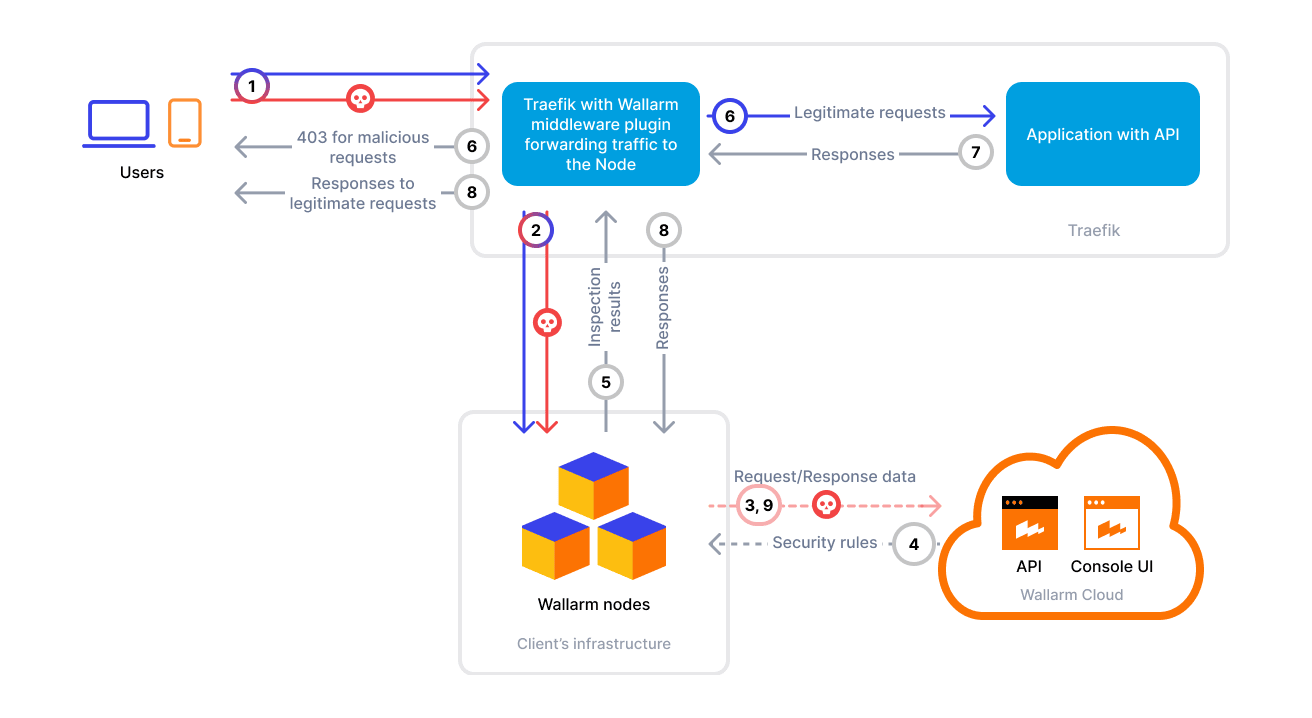
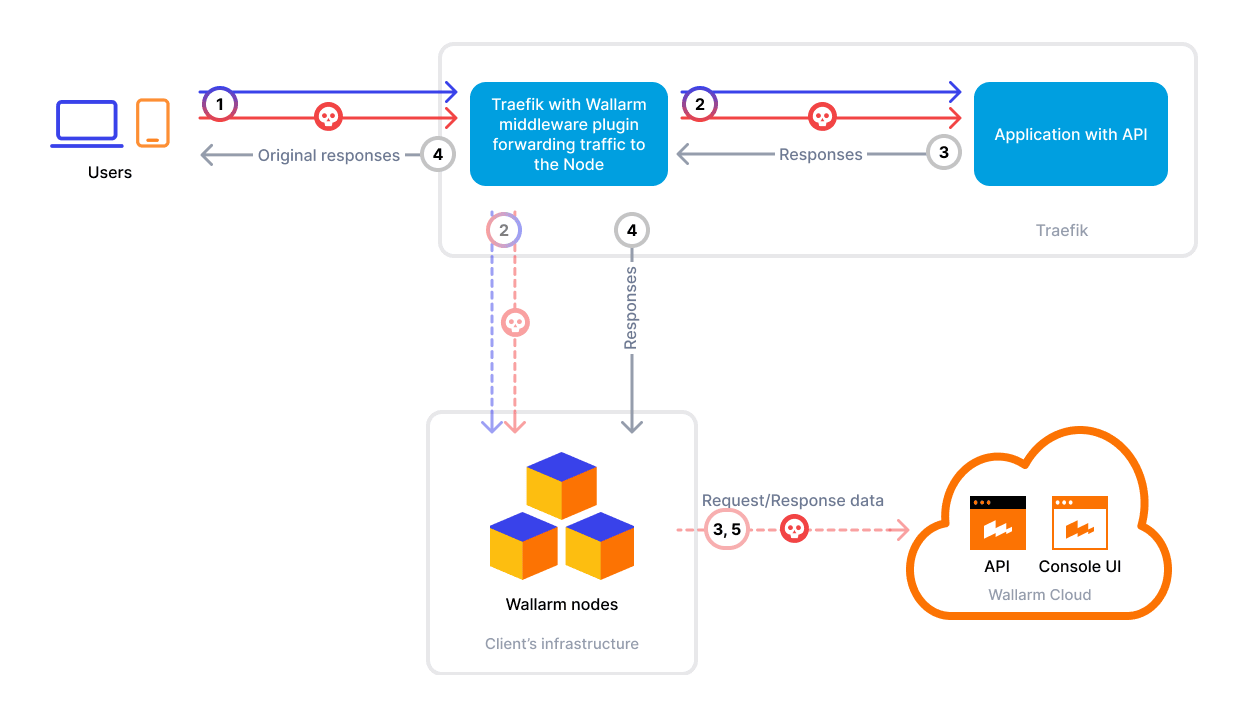
To secure APIs managed by Traefik, Wallarm provides a connector implemented as an in-process Traefik middleware plugin. The plugin routes ingress traffic through a Wallarm Native Node for real-time API attack detection, without sidecars, DaemonSets, or traffic mirroring infrastructure. One shared Node deployment serves every Traefik replica in the cluster.
The connector supports both synchronous (in-line) and asynchronous (out-of-band) traffic analysis, selected with the mode value:
-
block(default) — the Node verdict is enforced in-line. The403response is returned to the client before the request reaches your service. -
oob— a copy of each request is sent to the Node asynchronously. Traffic latency is unaffected, and attacks appear in Wallarm Console.
Use cases
This connector is the optimal choice when you need protection for APIs exposed through Traefik in a Kubernetes cluster, and you want one shared Wallarm Node to serve every Traefik replica.
Limitations
-
The connector requires a self-hosted Wallarm Native Node. It is not available with Security Edge.
-
Only the first 1 MiB of a request body is sent to the Node for analysis. The cap is configurable with
maxBodyBytes. -
The plugin fails open by default. If the Node does not answer within
timeoutMs, the request proceeds to the upstream service without a Wallarm verdict. SetfailOpentofalseto fail closed instead. -
Traefik strips the
X-Real-IPandX-Forwarded-*headers from peers it does not trust, and it does so before middleware runs. The connector cannot restore them, so the trusted peers have to be configured on the Traefik side. See Configuring the real client IP.
Requirements
To proceed with the deployment, ensure that the following requirements are met:
-
Traefik 2.x or 3.x deployed in a Kubernetes cluster and managing your API traffic, installed with the official Traefik Helm chart
-
Helm v3 package manager
-
Wallarm Native Node 0.25.8 or later. Earlier Node versions do not accept the
traefikconnector type -
Access to
https://charts.wallarm.comto add the Wallarm Helm chart -
Access to the Wallarm repositories on Docker Hub
https://hub.docker.com/r/wallarm -
Access to
https://us1.api.wallarm.com(US Wallarm Cloud) orhttps://api.wallarm.com(EU Wallarm Cloud) -
Administrator access to Wallarm Console for US Cloud or EU Cloud
Deployment
To secure APIs managed by Traefik, follow these steps:
-
Deploy the Wallarm Native Node service in your Kubernetes cluster.
-
Obtain the Wallarm Traefik connector, deploy it, load the plugin into Traefik, and attach the middleware to the Ingress resources you want to analyze.
1. Deploy a Wallarm Native Node
Deploy the Wallarm Native Node in connector-server mode as a separate service in your Kubernetes cluster:
helm repo add wallarm https://charts.wallarm.com
helm install native wallarm/wallarm-node-native -n wallarm-node --create-namespace \
  --set config.connector.mode=connector-server --set config.api.token=<TOKEN>
<TOKEN> is your Wallarm API token.
The connector-server endpoint defaults to http://native-processing.wallarm-node.svc.cluster.local:5000.
For the full set of deployment and configuration options, see the Native Node Helm chart instructions.
2. Obtain the Wallarm Traefik connector
Contact support@wallarm.com to obtain the Wallarm Traefik connector code bundle.
3. Deploy the connector
Install the connector chart, which creates the plugin ConfigMap and the Traefik Middleware resource:
helm install wallarm-traefik-connector ./charts/wallarm-traefik-connector \
  -n traefik \
  --set nodeURL=http://native-processing.wallarm-node.svc.cluster.local:5000 \
  --set mode=block
Set mode to block to enforce Node verdicts in-line, or to oob for out-of-band analysis.
4. Load the plugin into Traefik
Apply the values file supplied with the connector bundle to register the plugin with Traefik. It mounts the plugin ConfigMap into the Traefik pod:
5. Protect an Ingress
Attach the Wallarm middleware to the Ingress resources you want to analyze:
kubectl annotate ingress <name> \
  traefik.ingress.kubernetes.io/router.middlewares=traefik-wallarm@kubernetescrd
<name> is the name of your Ingress resource. For an IngressRoute, reference the middleware in the route definition instead.
Configuring the real client IP
Traefik strips the X-Real-IP and X-Forwarded-* headers from peers it does not trust, and it does so before middleware runs. If a load balancer or CDN fronts Traefik, list the trusted peers in the Traefik Helm values. Otherwise, Wallarm Console attributes every attack to the load balancer instead of the real client:
Headers cannot be recovered later
The connector cannot restore these headers on its own, because Traefik removes them before the plugin receives the request.
Configuration options
In the connector chart values, you can customize the following optional parameters:
| Parameter | Description | Default |
|---|---|---|
nodeURL |
Address of the Wallarm Native Node connector-server endpoint. |
http://native-processing.wallarm-node.svc.cluster.local:5000 |
mode |
Traffic analysis mode: block to enforce the Node verdict in-line, or oob to send a copy of each request asynchronously. |
block |
timeoutMs |
The maximum time (in milliseconds) the plugin waits for a response from the Wallarm Node. | 1000 |
failOpen |
Whether to let the request through when the Node does not answer within timeoutMs. When false, the request is rejected instead. |
true |
maxBodyBytes |
The maximum size (in bytes) of the request body sent to the Node for analysis. | 1048576 (1 MiB) |
inspectResponse |
Sends the upstream response status and headers to the Node on a second, correlated leg. Required for API Discovery and API Sessions: API Discovery ignores requests that have no response. | true |
inspectResponseBody |
Also sends the response body, capped by maxBodyBytes. Requires inspectResponse. |
true |
middleware.name |
Name of the Traefik Middleware resource created by the chart. |
wallarm |
plugin.configMapName |
Name of the ConfigMap holding the plugin source, mounted into the Traefik pod. | wallarm-traefik-plugin |
Testing
To test the functionality of the deployed connector, follow these steps:
-
Verify that the Wallarm pods are up and running:
wallarm-nodeis the namespace where the Wallarm node service is deployed.Each pod status should be STATUS: Running or READY: N/N.
-
Send the request with the test Path Traversal attack to your Traefik ingress:
The result depends on the connector mode and on the Wallarm node filtration mode:
Connector mode Node filtration mode Result blockblocking 403returned by the Node, the request never reaches the applicationblockmonitoring 200from the application, the attack is registered in Wallarm Consoleoobany 200from the application, the attack is registered in Wallarm Console asynchronously -
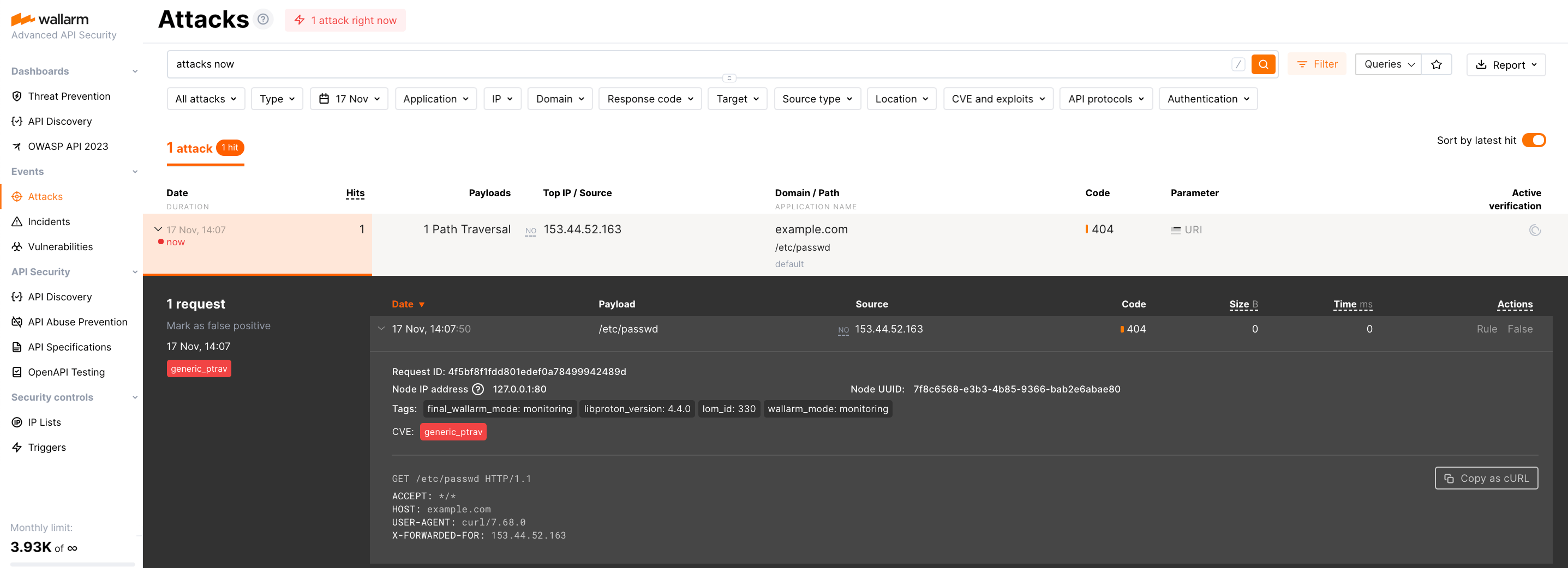
Open Wallarm Console → Attacks section in the US Cloud or EU Cloud and make sure the attack is displayed in the list.
Upgrading the Wallarm Traefik connector
To upgrade the deployed connector:
-
Contact support@wallarm.com to obtain the updated Wallarm Traefik connector code bundle.
-
Upgrade the connector chart, which refreshes the plugin ConfigMap:
-
Restart Traefik so that it reloads the plugin source:
Connector upgrades may require a Wallarm node upgrade, especially for major version updates. See the Wallarm Native Node changelog for release updates and upgrade instructions. Regular node updates are recommended to avoid deprecation and simplify future upgrades.