Client‑Side Human Identification for Web
Human Identity by Wallarm is a client-side service that verifies whether requests to your applications come from real users or automated tools. It covers web and mobile platforms — this article describes the Web Antibot component.
Overview
Web Antibot is a JavaScript-based agent that detects and blocks automated behavior in browsers. It verifies the browser environment at the moment of a user action and provides a signed verdict (human, suspicious, or bot).
Depending on your setup, the verdict can be enforced by Wallarm's modules or by your own backend logic.
Where human identification adds value
Public web applications always receive automated traffic. Bots load content, execute JavaScript, and interact with pages like real users — clicking login, sign up, checkout, and other actions.
These actions are not harmless. Bots use them to:
-
Attempt account takeover (credential stuffing)
-
Create fake accounts at scale
-
Abuse checkout and inventory
-
Probe endpoints to prepare attacks, etc.
Even when they do not complete the flow, they still create problems: security risks, increased costs, and distorted analytics (e.g., fake clicks on critical actions).
Human Identity solves these problems by verifying the browser execution environment before the action is processed. It can be used anywhere in your application, but is most effective for high-value actions:
| Use case | What happens |
|---|---|
| Login | Blocks credential stuffing before authentication is processed. |
| Checkout | Prevents automated purchases and inventory abuse. |
| Account creation | Stops large-scale fake account registration. |
| Password reset | Prevents abuse of reset flows. |
| Any critical action | Protects forms, coupons, voting, and other sensitive operations. |
How it works
At a high level: a JavaScript library collects browser signals, the Human Identification Server (hosted and managed by Wallarm) evaluates them and returns a signed JWT with a verdict. The verdict is then enforced — either by Wallarm's modules or by your own backend logic.
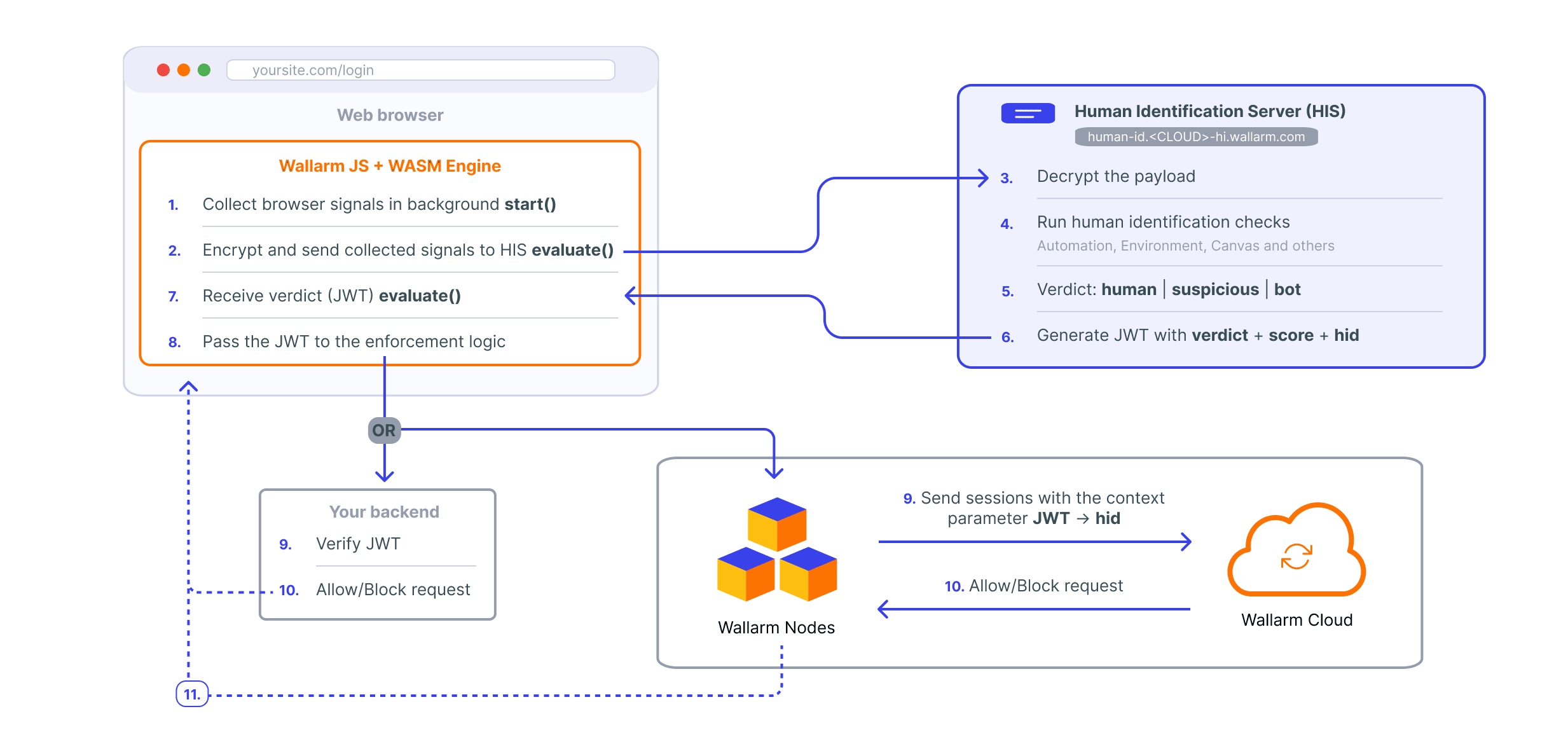
Step-by-step flow
-
Load & collect signals
Your page loads theengine.jslibrary asynchronously. It initializes a WASM engine, loads application-specific bytecode, and starts collecting browser signals (environment, rendering, behavior) in the background. -
Verify on user action
When the user triggers a protected action (e.g., login), your code callsevaluate(). The library finalizes collection and sends the signals to the Human Identification Server (hosted and managed by Wallarm). -
Analysis & decision
The server runs detection checks, computes a risk score, and assigns a verdict:human,suspicious, orbot. -
Token issuance
The result is returned as a signed JWT containing the verdict, score, and a stable device identifier (hid). -
Enforce
How you enforce the verdict depends on your setup. If you use a Wallarm Node inline, store the JWT in a cookie and configurehidas a session context parameter in Wallarm Console — Wallarm's modules handle the rest.If you use your own backend, attach the JWT to the request and verify it server-side.
Library functions
The engine.js library provides 2 functions used in the flow above:
| Function | What it does |
|---|---|
start(url, appID, options) |
Initializes the WASM engine, loads bytecode, and begins collecting browser signals in the background. Call it when the page loads. |
evaluate() |
Finalizes signal collection, sends the data to the Human Identification Server, and returns a JWT with the verdict (or null on failure). Call it when the user triggers the protected action, e.g. "Login". |
After evaluate() completes, the engine stops. For each new protected action, call start() and evaluate() again.
Each evaluate() call produces a new JWT (new iat, exp, potentially new score). If the user reloads the page, the entire cycle restarts: start() collects signals again, evaluate() returns a fresh token.
Token
The Human Identity service returns a signed JWT. The JWT contains the following claims:
| Claim | Type | Description |
|---|---|---|
verdict |
string | "human", "suspicious", or "bot". |
score |
float | Numeric risk score (0.0 = definitely human, higher = more suspicious). |
hid |
string | Device fingerprint — stable across visits for the same browser/device. |
monitoring |
boolean | Present when the solution is in monitoring mode (tokens issued even for bots). |
iat, exp |
timestamp | Token issue time and expiration. Tokens are short‑lived (~1 minute) to prevent relay and replay attacks. |
Setup
Step 1: Get your credentials
Contact sales@wallarm.com to enable Human Identity. Provide the domain(s) where you plan to integrate the solution (e.g., login.example.com).
The Wallarm team will provision a server instance for your account and provide:
-
Human Identification Server (HID) endpoint — the base URL depends on the chosen Wallarm Cloud region:
https://human-id.us-hi.wallarm.com/for the US Cloudhttps://human-id.eu-hi.wallarm.com/for the EU Cloud
-
Application ID — identifies your application in the HIS and links requests to your configuration.
You will use these credentials when initializing the Wallarm JavaScript library.
Step 2: Integrate the library and protect an action
Add the engine.js library to your page and wire it to the action you want to protect.
Below are 2 integration examples:
The simplest integration — the token is placed in a hidden form field and submitted with the form:
<form id="login-form" action="/login" method="POST">
    <input type="email" name="email" placeholder="Email" required>
    <input type="password" name="password" placeholder="Password" required>
    <input type="hidden" name="hid_token" id="hid-token">
    <button type="button" id="login-btn">Log In</button>
</form>

<script type="module">
import { start, evaluate } from 'https://<HIS_URL>/app/<YOUR_APP_ID>/js/engine.js';

await start('https://<HIS_URL>', '<YOUR_APP_ID>', { timeout: 10000 });

document.getElementById('login-btn').addEventListener('click', async () => {
    const token = await evaluate();
    document.getElementById('hid-token').value = token || '';
    document.getElementById('login-form').submit();
});
</script>
For single-page applications — the token is sent as JSON, and if login fails, the library reinitializes for another attempt:
<form>
    <input type="email" id="email" placeholder="Email" required>
    <input type="password" id="password" placeholder="Password" required>
    <button type="button" id="login-btn">Log In</button>
    <p id="error" hidden></p>
</form>

<script type="module">
import { start, evaluate } from 'https://<HIS_URL>/app/<YOUR_APP_ID>/js/engine.js';

const reinit = () => start('https://<HIS_URL>', '<YOUR_APP_ID>', { timeout: 10000 });
await reinit();

document.getElementById('login-btn').addEventListener('click', async () => {
    const token = await evaluate();

    const response = await fetch('/login', {
        method: 'POST',
        headers: { 'Content-Type': 'application/json' },
        body: JSON.stringify({
            email: document.getElementById('email').value,
            password: document.getElementById('password').value,
            hid_token: token
        }),
        signal: AbortSignal.timeout(10000)
    });

    if (response.ok) {
        window.location.href = '/dashboard';
    } else {
        document.getElementById('error').textContent = 'Invalid credentials';
        document.getElementById('error').hidden = false;
        await reinit();
    }
});
</script>
-
<HIS_URL>is your Human Identity endpoint provided by the Wallarm team -
<YOUR_APP_ID>is your Application ID provided by the Wallarm team
In both examples, the token is sent to your backend along with the login request — as a hidden form field or a JSON body property. From there, it can be enforced by Wallarm's modules or by your own backend logic.
Step 3: Enforce the verdict
There are 2 approaches — choose based on your infrastructure:
If you have a Wallarm Node deployed inline — receiving all traffic after the Human Identity script has run — you can use the hid from the token as a session context parameter, enabling enforcement by device fingerprint across Wallarm's modules.
Set up session tracking by hid:
-
Store the JWT in a cookie.
Add the following code to your page alongside the code from Step 2. After calling
evaluate(), store the full JWT in a cookie so that it is included in subsequent requests passing through the Node: -
Add
hidas a session context parameter.In Wallarm Console, go to API Sessions → Session context parameters and add a new parameter. Set the path to the
hidclaim inside the JWT, e.g.: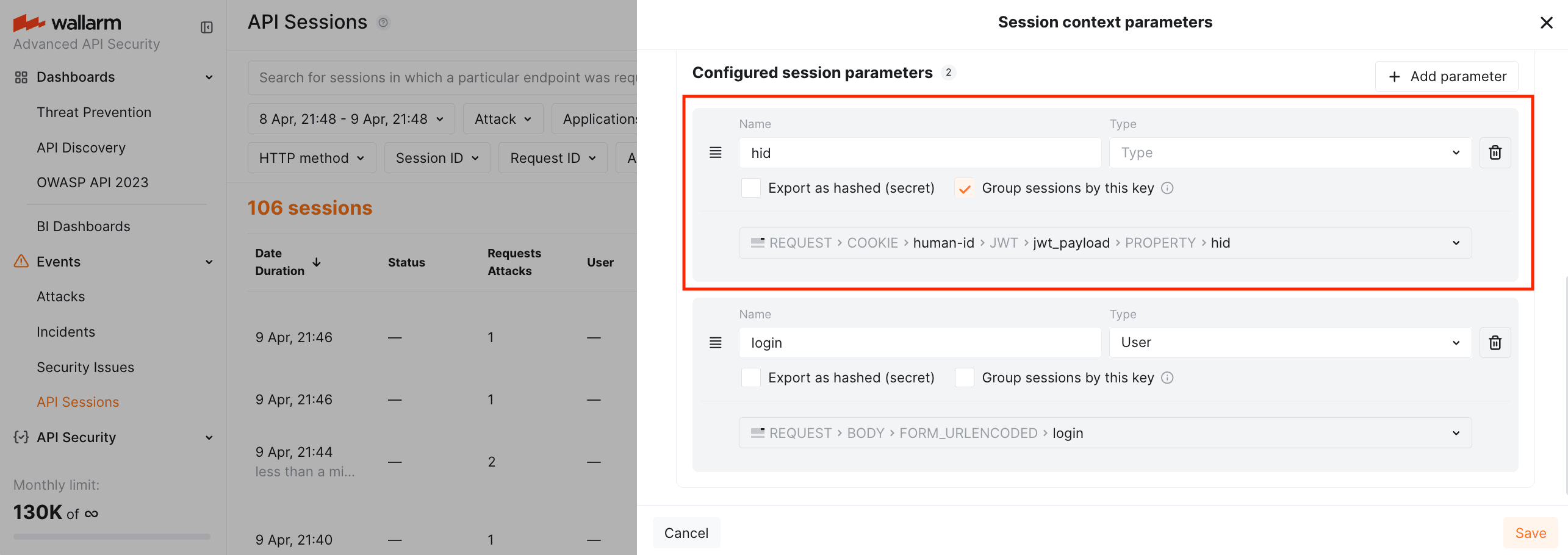
Enable Group sessions by this key so that sessions are grouped by device fingerprint rather than by IP alone.
Once hid is configured as a session context parameter, it becomes available across Wallarm's enforcement mechanisms:
-
Visibility: in API Sessions, filter and inspect sessions grouped by
hid. This reveals patterns invisible when grouping by IP — for example, the same browser rotating through multiple IPs.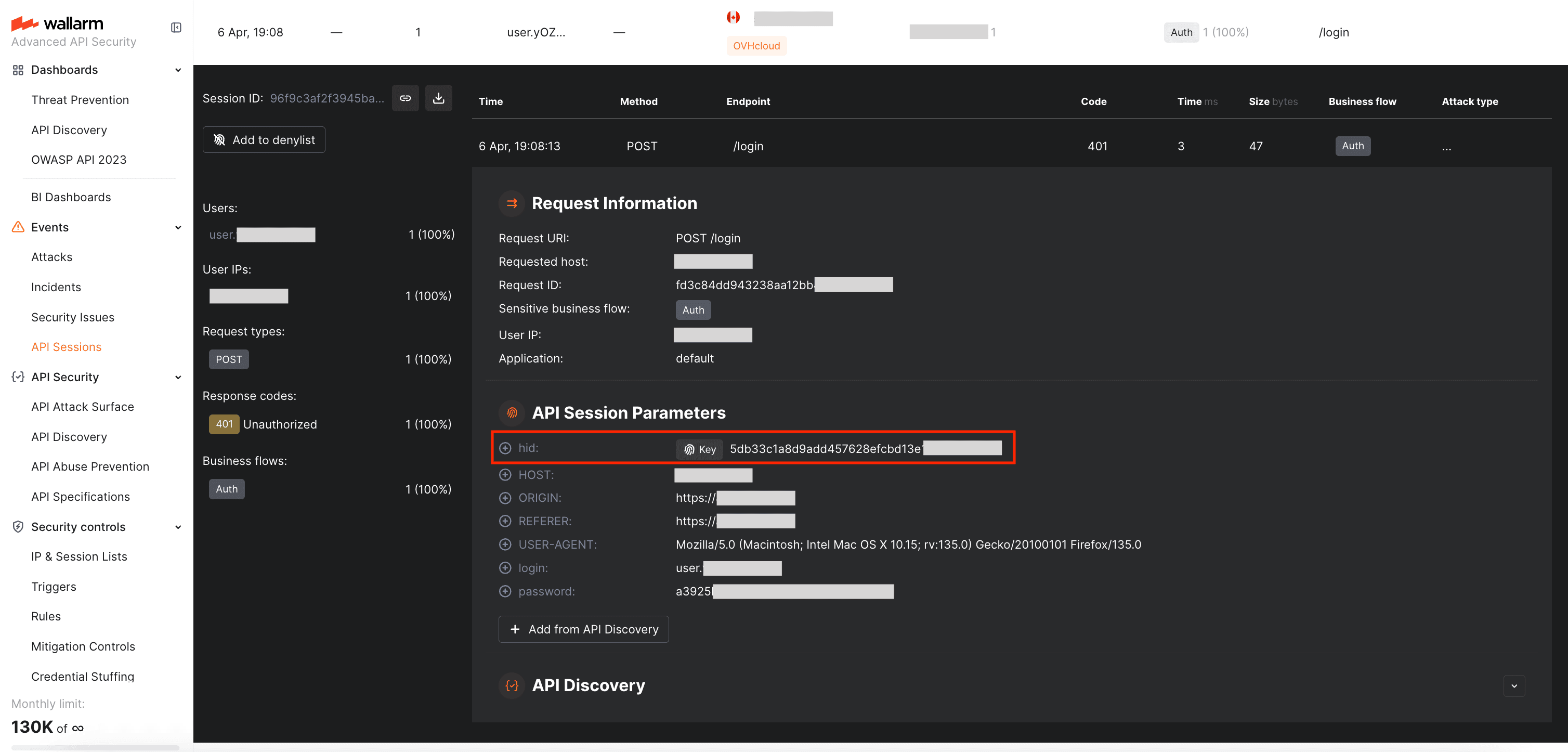
-
Anonymous session tracking:
hididentifies the browser before the user logs in. Without it, pre-authentication traffic (e.g., login attempts) has no stable identifier — only IP, which attackers rotate. Withhidas a grouping key, Wallarm builds sessions from anonymous requests, and all enforcement mechanisms listed below can be applied to these sessions. - Session denylist: block a specific
hidsession via Session Denylist. - API Abuse Prevention: when API Abuse Prevention is configured with the Denylist session reaction and sessions are grouped by
hid, the module analyzes behavioral patterns within sessions identified by the device fingerprint. If bot behavior is detected, the session with thathidis added to the Session Denylist — blocking all subsequent requests from the same browser, regardless of IP rotation. - Brute force protection: configure a Brute Force Protection rule that limits login attempts per
hid. If the same browser fingerprint exceeds the threshold, the session is blocked.
Your backend verifies the token and decides how to handle the request.
For each protected request:
-
Fetch the JWKS public key from the Human Identification Server:
- US Cloud:
GET https://human-id.us-hi.wallarm.com/.well-known/jwks.json - EU Cloud:
GET https://human-id.eu-hi.wallarm.com/.well-known/jwks.json
- US Cloud:
-
Verify the JWT signature.
- Check the
expclaim — tokens are short‑lived (~1 minute). -
Read the
verdictclaim and act accordingly:"human"— allow the request."suspicious"— allow but consider step‑up authentication (e.g., MFA)."bot"— reject the request.
-
Optionally, extract the
hidclaim (device fingerprint) to track repeat offenders by browser identity rather than by IP.
Step 4: Test the integration
Verify that tokens are issued correctly:
-
Open your protected page in a browser and trigger the protected action.
-
In the browser DevTools (Network tab), verify that the
evaluaterequest succeeds and returns a JWT. -
Check that the JWT is attached to your request (as a hidden field, JSON property, or cookie — depending on your integration).
-
Test with a headless browser or automation tool — the
verdictin the returned token should be"bot".
Verify that enforcement works:
-
Wallarm modules: check that the
hidcookie appears in requests passing through the Node. In Wallarm Console → API Sessions, confirm that sessions are grouped byhid. Then trigger a configured enforcement rule and verify that the session is added to the Session Denylist and subsequent requests are blocked. -
Your own backend: send a request with a
"bot"verdict token and confirm your backend rejects it. Send a request with a"human"verdict token and confirm it passes.