# Exploring Test Run Results  Once [Schema-Based Testing](https://docs.wallarm.com/vulnerability-detection/schema-based-testing/overview.md) is enabled and tests [are run](https://docs.wallarm.com/vulnerability-detection/schema-based-testing/setup.md#docker-run), you can explore the test run results as described in this article.
## Test runs and results
In Wallarm Console, go to **Security Testing** → **Schema-Based** → **Test runs** to view all test runs and their results.
Here you can review security issues detected during the run, health checks, and the Docker output for the run:
## Test run details
You can obtain test run details from Wallarm Cloud and from you Docker container output.
### In Wallarm UI
Click test run to expand and see its detailed technical information:
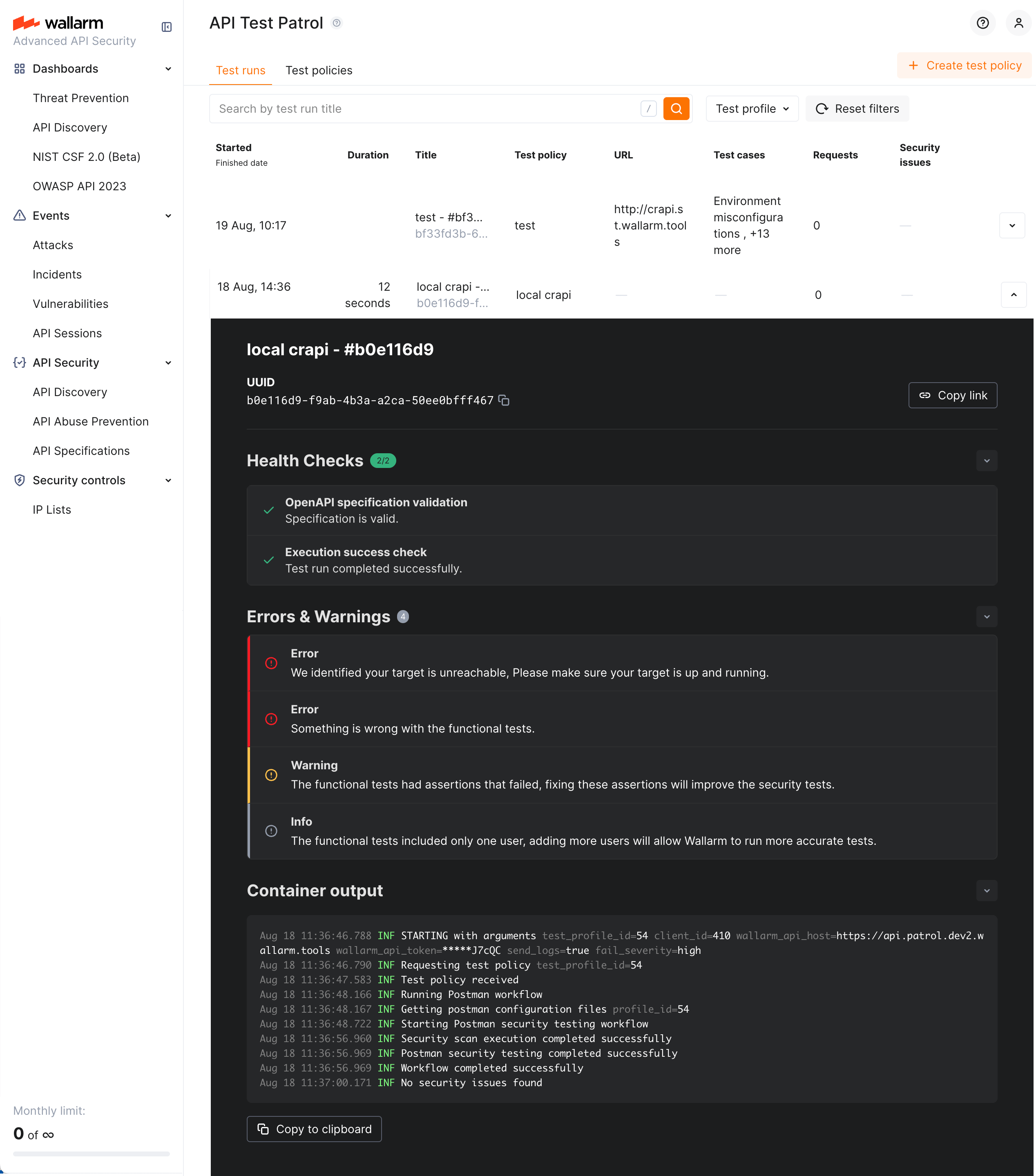
You can check:
* Test run health: is specification/Postman collection valid and was the run successful.
* Errors and warnings (if any) occurred while running.
* Docker container output (with the **Copy to clipboard** capability).
Also you can:
* Download JSON report for your test run.
* Copy link to the test run details to share with colleagues.
### Docker container output
You can find test run results in your Docker container output directly, for example:
```
Sep 2 18:26:40.222 INF STARTING with arguments test_profile_id=60 client_id=5 wallarm_api_host=https://us1.api.wallarm.com wallarm_api_token=*****FWmup send_logs=true fail_severity=high
Sep 2 18:26:40.228 INF Running pre-flight checks
Sep 2 18:26:40.698 INF Successfully authenticated with Wallarm API
Sep 2 18:26:40.698 INF All pre-flight checks passed
Sep 2 18:26:40.698 INF Requesting test policy test_profile_id=60
Sep 2 18:26:41.926 INF Test policy received
Sep 2 18:26:42.383 INF Running Postman workflow
Sep 2 18:26:42.383 INF Getting postman configuration files test_profile_id=60
Sep 2 18:26:43.168 INF Running target URL connectivity check with Newman
Sep 2 18:27:40.723 INF Target URL connectivity check with Newman passed total_requests=47 failed_requests=9 failure_ratio=0.19148936170212766 threshold=0.75
Sep 2 18:27:40.727 INF Starting Postman security testing workflow
Sep 2 18:33:51.069 INF Postman security testing completed successfully
Sep 2 18:33:51.069 INF Workflow completed successfully
Sep 2 18:33:57.283 INF Security issues summary total_issues=17 severity_counts.high=16 severity_counts.medium=1
Sep 2 18:33:57.410 INF Container logs exportedto the cloud
Sep 2 18:33:57.411 ERR Exiting with code 1 due to security issues meeting fail-severity threshold fail_severity=high count=16
```
In the example, pay your attention to exit with code 1 (failed tests) due to set [test run success criteria](https://docs.wallarm.com/vulnerability-detection/schema-based-testing/setup.md#test-run-success-criteria).
## Downloading initial files
From the **Schema-Based Testing** page, you can download files that you used for creating OAS or Postman-based test policies:
* OAS: its specification.
* Postman: Postman collection file, Postman environment file(s) if were used
To download files:
1. In Wallarm Console, go to **API Security Testing** → **Schema-Based** → **Test policies** tab.
1. Hover your policy, and click the edit icon. Policy edit dialog is displayed.
1. In corresponding file field, click the download icon.
Once [Schema-Based Testing](https://docs.wallarm.com/vulnerability-detection/schema-based-testing/overview.md) is enabled and tests [are run](https://docs.wallarm.com/vulnerability-detection/schema-based-testing/setup.md#docker-run), you can explore the test run results as described in this article.
## Test runs and results
In Wallarm Console, go to **Security Testing** → **Schema-Based** → **Test runs** to view all test runs and their results.
Here you can review security issues detected during the run, health checks, and the Docker output for the run:
## Test run details
You can obtain test run details from Wallarm Cloud and from you Docker container output.
### In Wallarm UI
Click test run to expand and see its detailed technical information:

You can check:
* Test run health: is specification/Postman collection valid and was the run successful.
* Errors and warnings (if any) occurred while running.
* Docker container output (with the **Copy to clipboard** capability).
Also you can:
* Download JSON report for your test run.
* Copy link to the test run details to share with colleagues.
### Docker container output
You can find test run results in your Docker container output directly, for example:
```
Sep 2 18:26:40.222 INF STARTING with arguments test_profile_id=60 client_id=5 wallarm_api_host=https://us1.api.wallarm.com wallarm_api_token=*****FWmup send_logs=true fail_severity=high
Sep 2 18:26:40.228 INF Running pre-flight checks
Sep 2 18:26:40.698 INF Successfully authenticated with Wallarm API
Sep 2 18:26:40.698 INF All pre-flight checks passed
Sep 2 18:26:40.698 INF Requesting test policy test_profile_id=60
Sep 2 18:26:41.926 INF Test policy received
Sep 2 18:26:42.383 INF Running Postman workflow
Sep 2 18:26:42.383 INF Getting postman configuration files test_profile_id=60
Sep 2 18:26:43.168 INF Running target URL connectivity check with Newman
Sep 2 18:27:40.723 INF Target URL connectivity check with Newman passed total_requests=47 failed_requests=9 failure_ratio=0.19148936170212766 threshold=0.75
Sep 2 18:27:40.727 INF Starting Postman security testing workflow
Sep 2 18:33:51.069 INF Postman security testing completed successfully
Sep 2 18:33:51.069 INF Workflow completed successfully
Sep 2 18:33:57.283 INF Security issues summary total_issues=17 severity_counts.high=16 severity_counts.medium=1
Sep 2 18:33:57.410 INF Container logs exportedto the cloud
Sep 2 18:33:57.411 ERR Exiting with code 1 due to security issues meeting fail-severity threshold fail_severity=high count=16
```
In the example, pay your attention to exit with code 1 (failed tests) due to set [test run success criteria](https://docs.wallarm.com/vulnerability-detection/schema-based-testing/setup.md#test-run-success-criteria).
## Downloading initial files
From the **Schema-Based Testing** page, you can download files that you used for creating OAS or Postman-based test policies:
* OAS: its specification.
* Postman: Postman collection file, Postman environment file(s) if were used
To download files:
1. In Wallarm Console, go to **API Security Testing** → **Schema-Based** → **Test policies** tab.
1. Hover your policy, and click the edit icon. Policy edit dialog is displayed.
1. In corresponding file field, click the download icon.