Exploring Results  

You can view API Security Testing results in two ways: mainly in Postman's AI Mode (recommended), or in Wallarm Console for history and tracking.
View results in Postman AI Mode (main)
Postman's AI Agent returns LLM-assisted findings directly in the conversation: summarized risks, plain-language explanations, and remediation guidance. The format is designed for developers, so you can understand and act on issues without being a security specialist.
Use the report in the Agent conversation to:
-
See what was found (e.g., auth gaps, data leaks, over-permissive endpoints, schema issues, BOLA/BOPLA indicators).
-
Read the suggested fixes and apply them in your API or collection.
This is the primary way to consume results—immediate, in context, with no need to leave Postman.
View test runs in Wallarm Console (secondary)
Test results are also sent to Wallarm Cloud. To view the history of runs, credits consumed, and issue counts:
-
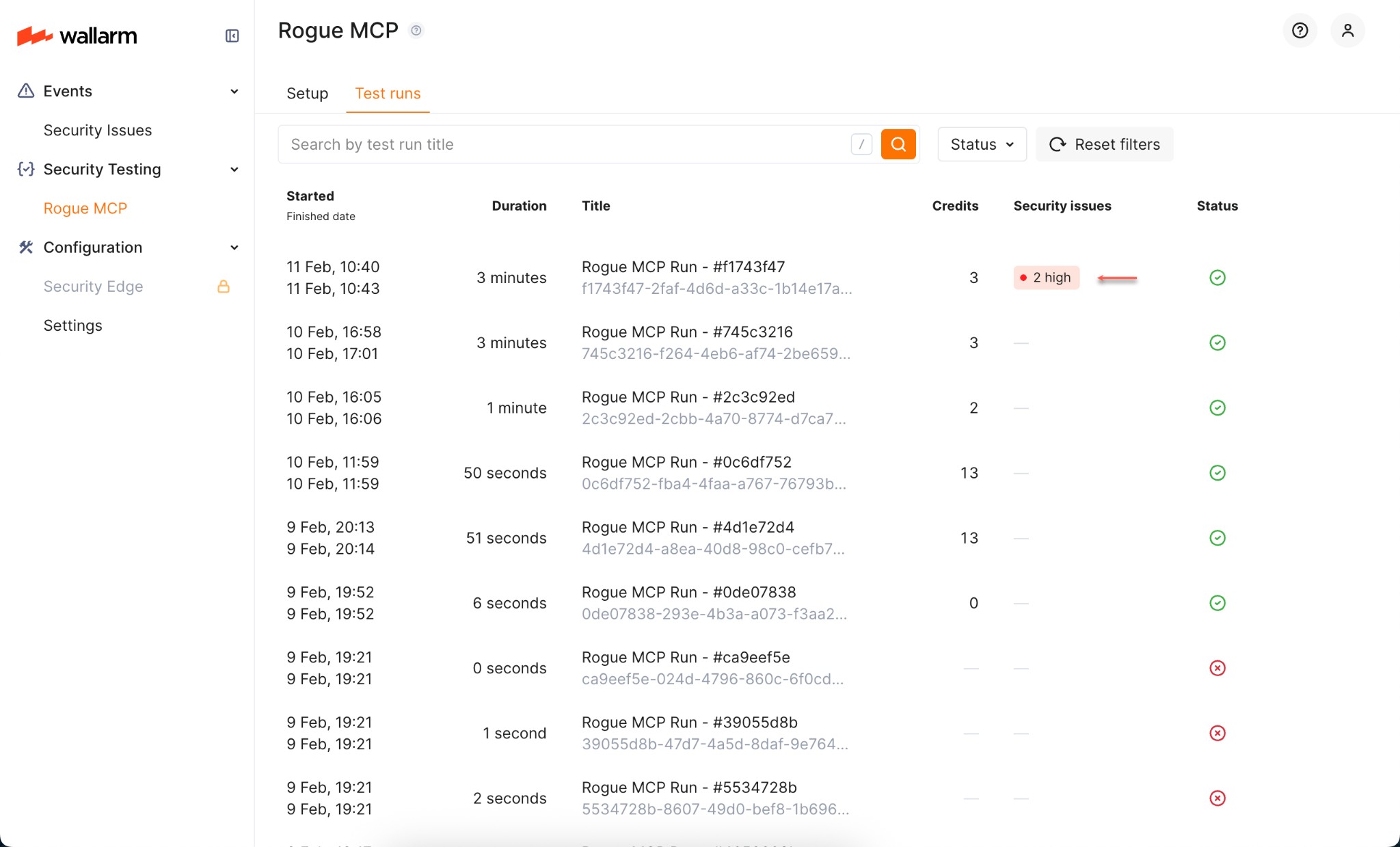
In Wallarm Console, go to Security Testing → Rogue MCP → the Test runs tab.
-
Use the table to see Started/Finished time, Duration, Title, Credits used, Security issues (count and severity), and Status (e.g. success or failed). Use Search by test run title and Status to filter.
-
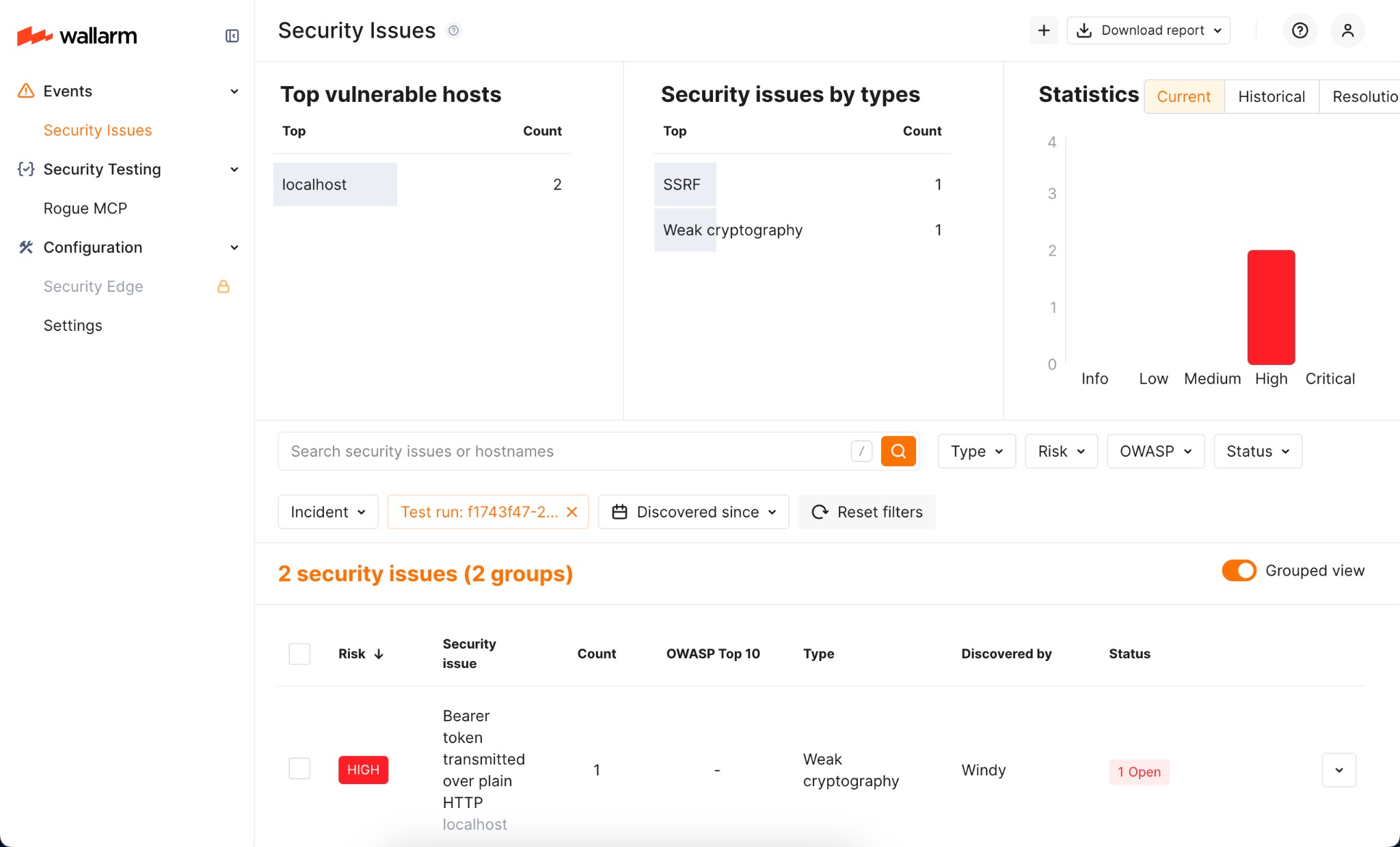
If a run has found issues, click the Security issues count to open the Security Issues section filtered by that test run. There you can click any issue to see full detailed information on it (risk, type, OWASP, status, and remediation).