# Splunk Enterprise via Fluentd
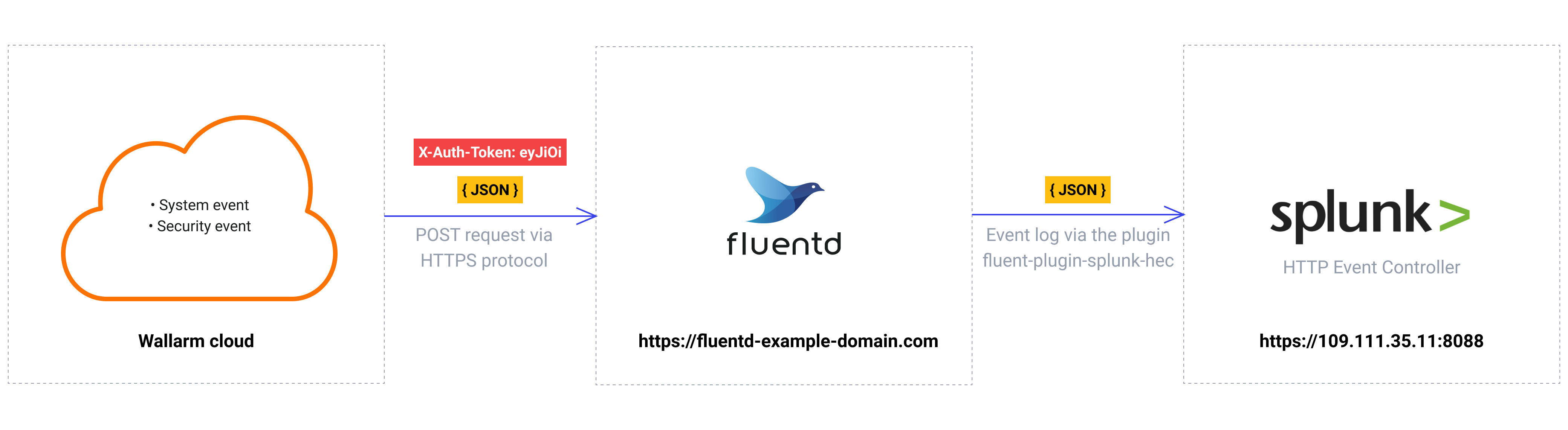
These instructions provide you with the example integration of Wallarm with the Fluentd data collector to further forward events to the Splunk SIEM system.
The most common logging scheme in complex systems consists of the following components:
* Data collector: accepts logs from several sources and forwards logs to the SIEM system
* [SIEM system](https://www.wallarm.com/what/siem-whats-security-information-and-event-management-technology-part-1) or log management systems: used to analyze logs and monitor the system status
## Used resources
* [Splunk Enterprise](#splunk-enterprise-configuration) with WEB URL `https://109.111.35.11:8000` and API URL `https://109.111.35.11:8088`
* [Fluentd](#fluentd-configuration) installed on Debian 11.x (bullseye) and available on `https://fluentd-example-domain.com`
* Administrator access to Wallarm Console in [EU cloud](https://my.wallarm.com) to [configure the Fluentd integration](#configuration-of-fluentd-integration)
!!! info "Wallarm Cloud IP addresses"
To provide Wallarm Cloud access to your system, you may need a list of its public IP addresses:
**US Cloud:**
```
34.102.90.100
34.94.156.115
35.235.115.105
34.94.85.217
34.94.51.234
34.102.59.122
34.94.238.72
35.235.100.79
34.102.45.38
34.94.241.21
34.94.203.193
34.94.238.221
34.94.9.235
34.94.118.150
34.94.193.9
```
**EU Cloud:**
```
34.141.230.156
34.91.138.113
34.90.114.134
35.204.127.78
34.90.24.155
34.7.147.149
```
**ME Cloud:**
```
34.166.215.174
```
Since the links to the Splunk Enterprise and Fluentd services are cited as examples, they do not respond.
### Splunk Enterprise configuration
Fluentd logs are sent to Splunk HTTP Event Controller with the name `Wallarm Fluentd logs` and other default settings:
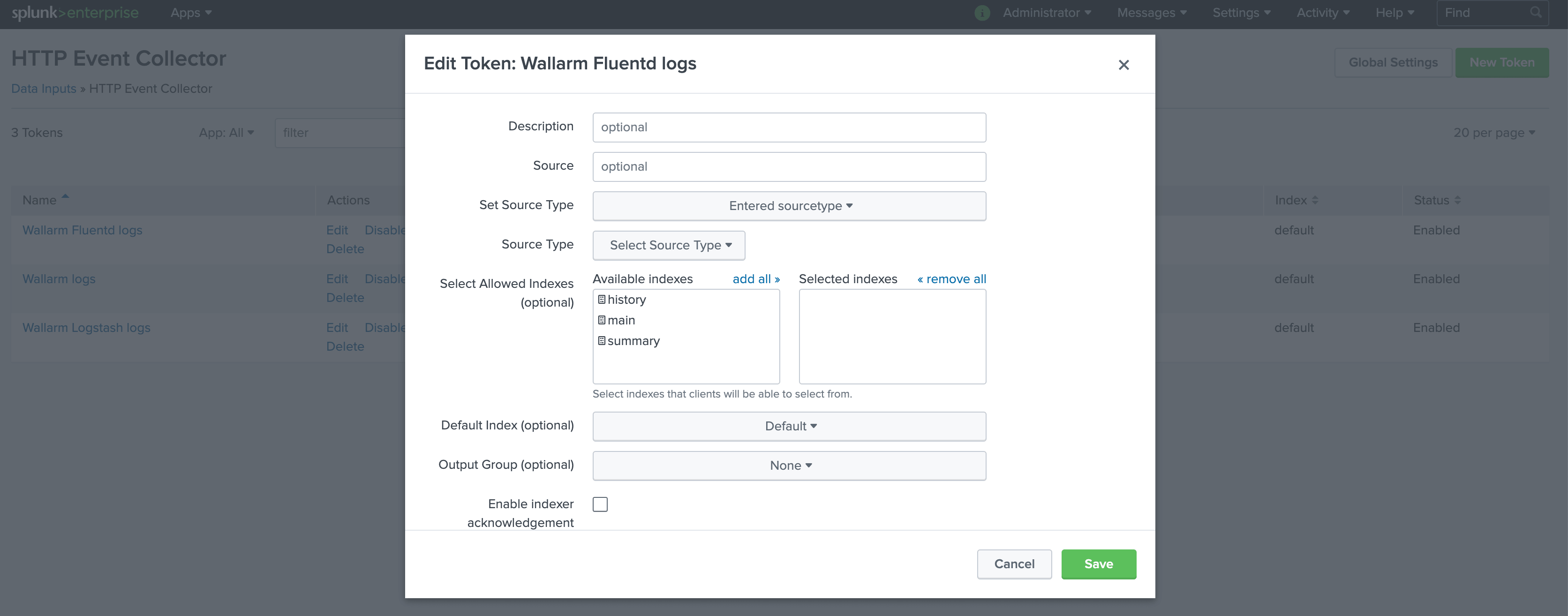
To access the HTTP Event Controller, the generated token `f44b3179-91aa-44f5-a6f7-202265e10475` will be used.
A more detailed description of Splunk HTTP Event Controller setup is available in the [official Splunk documentation](https://docs.splunk.com/Documentation/Splunk/8.0.5/Data/UsetheHTTPEventCollector).
### Fluentd configuration
Since Wallarm sends logs to the Fluentd intermediate data collector via webhooks, the Fluentd configuration should meet the following requirements:
* Accept the POST or PUT requests
* Accept HTTPS requests
* Have public URL
* Forward logs to Splunk Enterprise, this example uses the `splunk_hec` plugin to forward logs
Fluentd is configured in the `td-agent.conf` file:
* Incoming webhook processing is configured in the `source` directive:
* Traffic is sent to port 9880
* Fluentd is configured to accept only HTTPS connections
* Fluentd TLS certificate signed by a publicly trusted CA is located within the file `/etc/ssl/certs/fluentd.crt`
* Private key for TLS certificate is located within the file `/etc/ssl/private/fluentd.key`
* Forwarding logs to Splunk and log output are configured in the `match` directive:
* All event logs are copied from Fluentd and forwarded to Splunk HTTP Event Controller via the output plugin [fluent-plugin-splunk-hec](https://github.com/splunk/fluent-plugin-splunk-hec)
* Fluentd logs are additionally printed on the command line in JSON format (19-22 code lines). The setting is used to verify that events are logged via Fluentd
```bash linenums="1"
@type http # input plugin for HTTP and HTTPS traffic
port 9880 # port for incoming requests
# configuration for connections handling
cert_path /etc/ssl/certs/fluentd.crt
private_key_path /etc/ssl/private/fluentd.key
@type copy
@type splunk_hec # output plugin fluent-plugin-splunk-hec to forward logs to Splunk API via HTTP Event Controller
hec_host 109.111.35.11 # Splunk host
hec_port 8088 # Splunk API port
hec_token f44b3179-91aa-44f5-a6f7-202265e10475 # HTTP Event Controller token
@type json # format of forwarded logs
@type stdout # output plugin to print Fluentd logs on the command line
output_type json # format of logs printed on the command line
```
A more detailed description of configuration files is available in the [official Fluentd documentation](https://docs.fluentd.org/configuration/config-file).
!!! info "Testing Fluentd configuration"
To check that Fluentd logs are created and forwarded to Splunk, the PUT or POST request can be sent to Fluentd.
**Request example:**
```curl
curl -X POST 'https://fluentd-example-domain.com' -H "Content-Type: application/json" -H "Authorization: Splunk f44b3179-91aa-44f5-a6f7-202265e10475" -d '{"key1":"value1", "key2":"value2"}'
```
**Fluentd logs:**

**Splunk logs:**

### Configuration of Fluentd integration
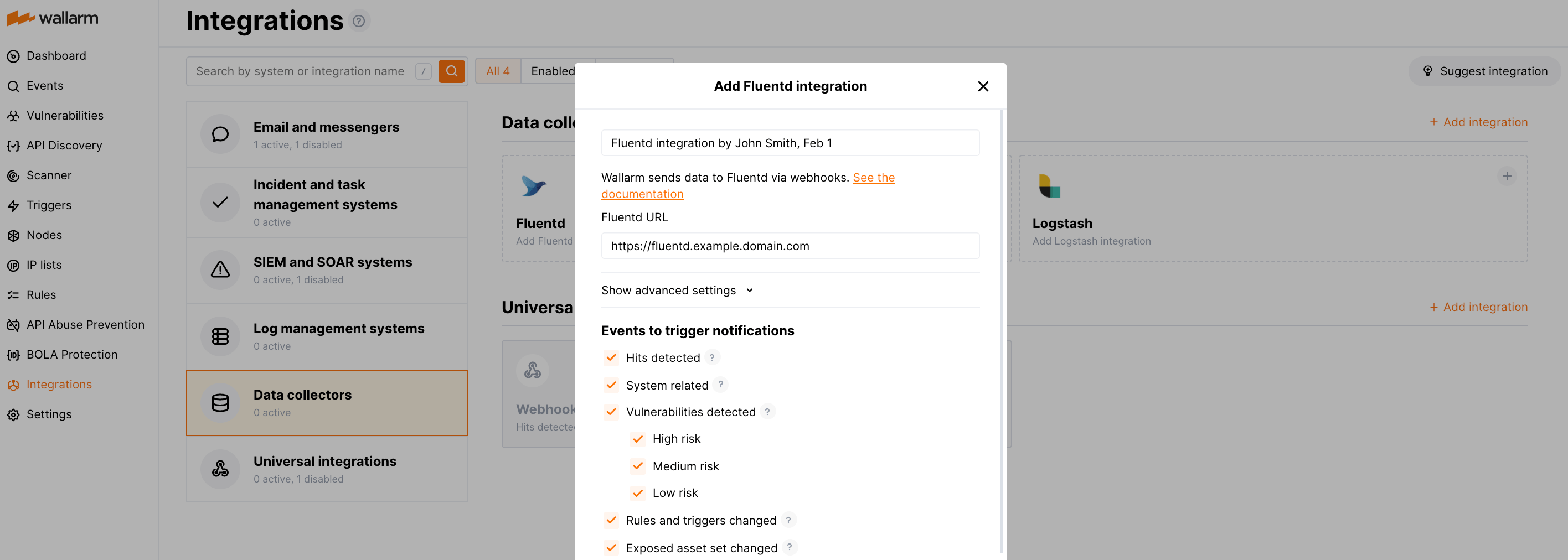
* Webhooks are sent to `https://fluentd-example-domain.com`
* Webhooks are sent via POST requests
* The webhook integration has default advanced settings
* Webhooks sent to Webhook URLs are all available events: hits, system events, vulnerabilities, scope changes
[More details on the Fluentd integration configuration](https://docs.wallarm.com/user-guides/settings/integrations/fluentd.md)
## Example testing
To test the configuration, a new user is added in Wallarm Console:
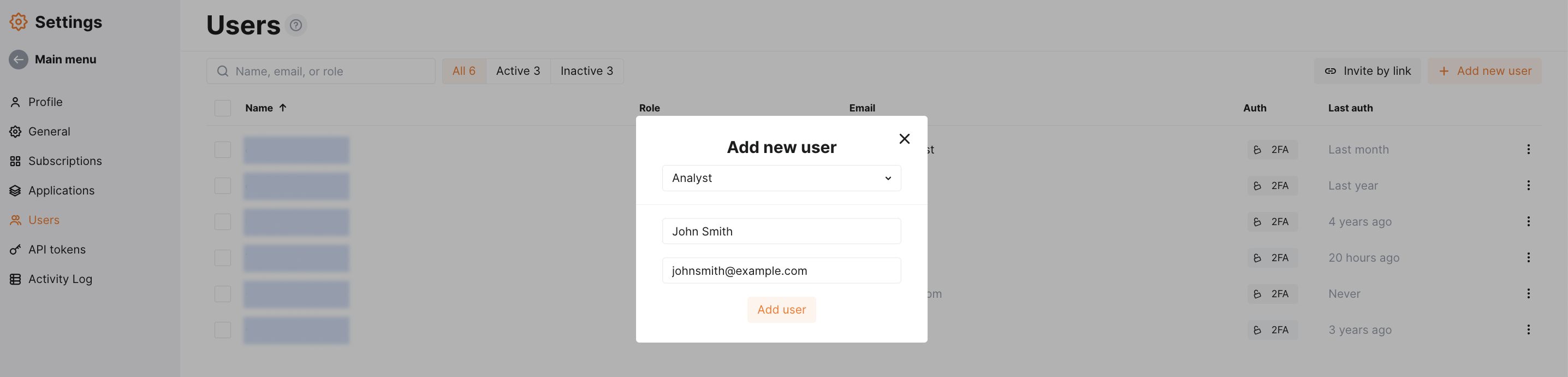
Fluentd will log the event as follows:

The following entry will be displayed in Splunk events:

## Getting events in Splunk Enterprise organized into a dashboard
To get Wallarm events organized into a ready-to-use dashboard in Splunk 9.0 or later, you can install the [Wallarm application for Splunk](https://splunkbase.splunk.com/app/6610).
This application provides you with a pre-configured dashboard that is automatically filled with the events received from Wallarm. In addition to that, the application enables you to proceed to detailed logs on each event and export the data from the dashboard.

To install the Wallarm application for Splunk:
1. In the Splunk UI ➝ **Apps** find the `Wallarm API Security` application.
1. Click **Install** and input the Splunkbase credentials.
If some Wallarm events are already logged in Splunk, they will be displayed on the dashboard, as well as further events Wallarm will discover.
In addition, you can fully customize the ready-to-use dashboard, e.g. its view or [search strings](https://docs.splunk.com/Documentation/Splunk/latest/SearchReference/Search) used to extract data from all Splunk records.