# Slack
[Slack](https://slack.com/) is a widely used cloud-based team collaboration and messaging platform. It is designed to facilitate communication and collaboration within organizations by providing a centralized space for teams to exchange messages, share files, and integrate with other tools and services. You can set up Wallarm to send notifications to your Slack channel(s). If you want to send notifications to several different Slack channels or accounts, create several Slack integrations.
## Setting up integration
1. Open the **Integrations** section.
1. Click the **Slack** block or click the **Add integration** button and choose **Slack**.
1. Enter an integration name.
1. Open [Webhook settings in Slack](https://my.slack.com/services/incoming-webhook/) and add a new Webhook choosing the channel to post messages to.
1. Copy the provided Webhook URL and paste the value to the **Webhook URL** field in Wallarm UI.
1. Choose event types to trigger notifications.
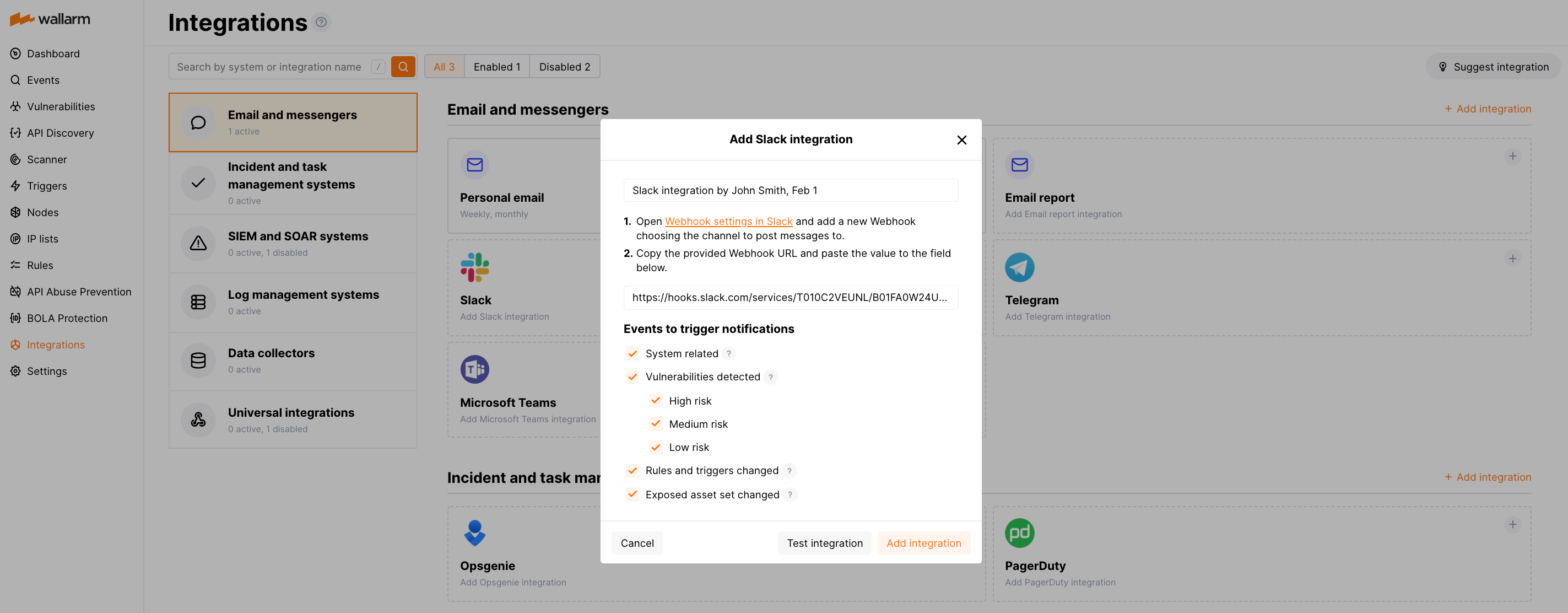
Details on available events:
* System related:
* [User](https://docs.wallarm.com/user-guides/settings/users.md) changes (newly created, deleted, role change)
* [Integration](https://docs.wallarm.com/user-guides/settings/integrations/integrations-intro.md) changes (disabled, deleted)
* [Application](https://docs.wallarm.com/user-guides/settings/applications.md) changes (newly created, deleted, name change)
* Errors during regular update of specifications used for [rogue API detection](https://docs.wallarm.com/api-discovery/rogue-api.md) or [API specification enforcement](https://docs.wallarm.com/api-specification-enforcement/setup.md#step-1-upload-specification)
* [Rules](https://docs.wallarm.com/user-guides/rules/rules.md) and [triggers](https://docs.wallarm.com/user-guides/triggers/triggers.md) changed (creating, updating, or deleting the rule or trigger)
* [Security issues](https://docs.wallarm.com/user-guides/vulnerabilities.md) detected by [all methods](https://docs.wallarm.com/about-wallarm/detecting-vulnerabilities.md#detection-methods), all or only for the selected risk level(s):
* Critical risk
* High risk
* Medium risk
* Low risk
* Info risk
1. Click **Test integration** to check configuration correctness, availability of the target system, and the notification format.
This will send the test notifications with the prefix `[Test message]`:
```
[Test message] [Test partner] Network perimeter has changed
Notification type: new_scope_object_ips
New IP addresses were discovered in the network perimeter:
8.8.8.8
Client: TestCompany
Cloud: EU
```
1. Click **Add integration**.
## Setting up additional alerts
Besides the notifications you have already set up through the integration card, Wallarm triggers allow you to select additional events for notifications:
* Number of [attacks](https://docs.wallarm.com/glossary-en.md#attack), [hits](https://docs.wallarm.com/glossary-en.md#hit) or incidents per time interval (day, hour, etc.) exceeds the set number
!!! info "What is not counted"
* For attacks:
* The experimental attacks based on the [custom regular expressions](https://docs.wallarm.com/user-guides/rules/regex-rule.md).
* For hits:
* The experimental hits based on the [custom regular expressions](https://docs.wallarm.com/user-guides/rules/regex-rule.md).
* Hits not saved in the [sample](https://docs.wallarm.com/user-guides/events/grouping-sampling.md#sampling-of-hits).
* [Changes in API](https://docs.wallarm.com/api-discovery/track-changes.md) took place
* IP address was [denylisted](https://docs.wallarm.com/user-guides/ip-lists/overview.md)
* New [rogue API](https://docs.wallarm.com/api-discovery/rogue-api.md) (shadow, zombie) was detected
* New user was added to the company account
For condition detailing, you can add one or more filters. As soon, as condition and filters are set, select the integration through which the selected alert should be sent. You can select several integrations simultaneously.
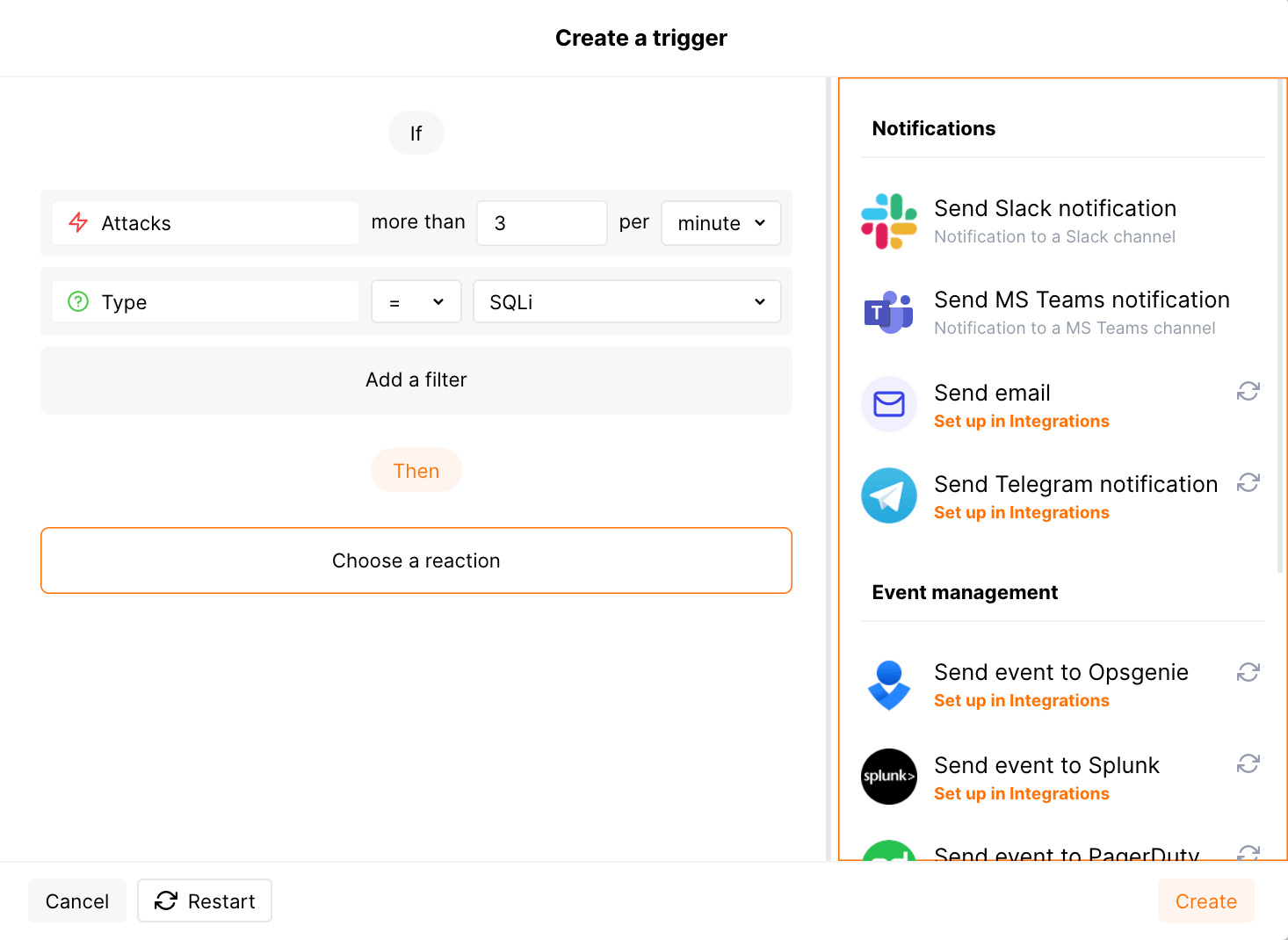
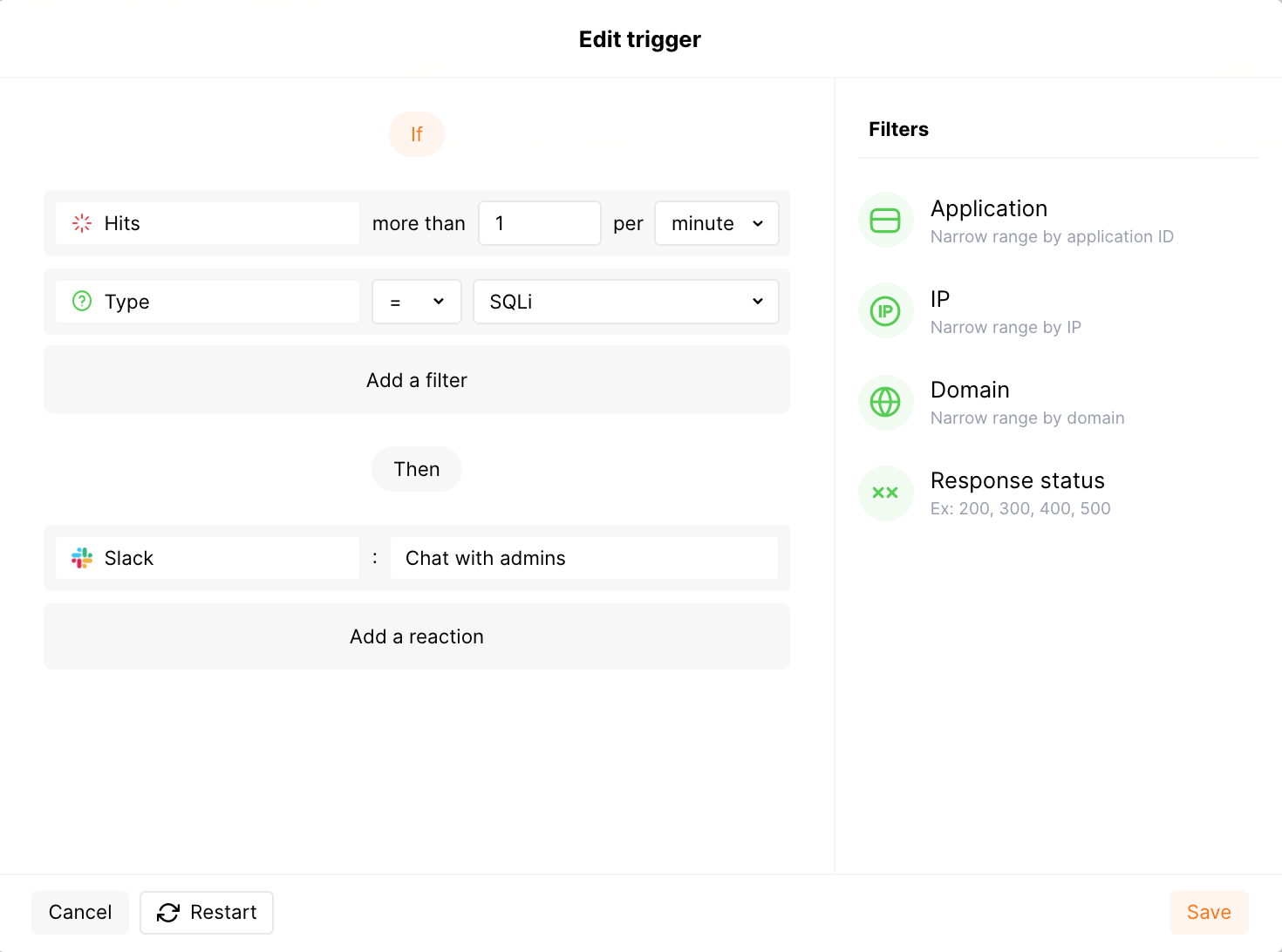
### Example: Slack notification if 2 or more SQLi hits are detected in one minute
If 2 or more SQLi [hits](https://docs.wallarm.com/glossary-en.md#hit) are sent to the protected resource, then a notification about this event will be sent to the Slack channel.
**To test the trigger:**
Send the following requests to the protected resource:
```bash
curl 'http://localhost/?id=1%27%20UNION%20SELECT%20username,%20password%20FROM%20users--'
curl 'http://localhost/?id=1%27%20select%20version();'
```
Open the Slack channel and check that the following notification from the user **wallarm** received:
```
[Wallarm] Trigger: The number of detected hits exceeded the threshold
Notification type: attacks_exceeded
The number of detected hits exceeded 1 in 1 minute.
This notification was triggered by the "Notification about SQLi hits" trigger.
Additional trigger’s clauses:
Attack type: SQLi.
View events:
https://my.wallarm.com/attacks?q=attacks&time_from=XXXXXXXXXX&time_to=XXXXXXXXXX
Client: TestCompany
Cloud: EU
```
* `Notification about SQLi hits` is the trigger name
* `TestCompany` is the name of your company account in Wallarm Console
* `EU` is the Wallarm Cloud where your company account is registered
### Example: Slack and email notification if new user is added to the account
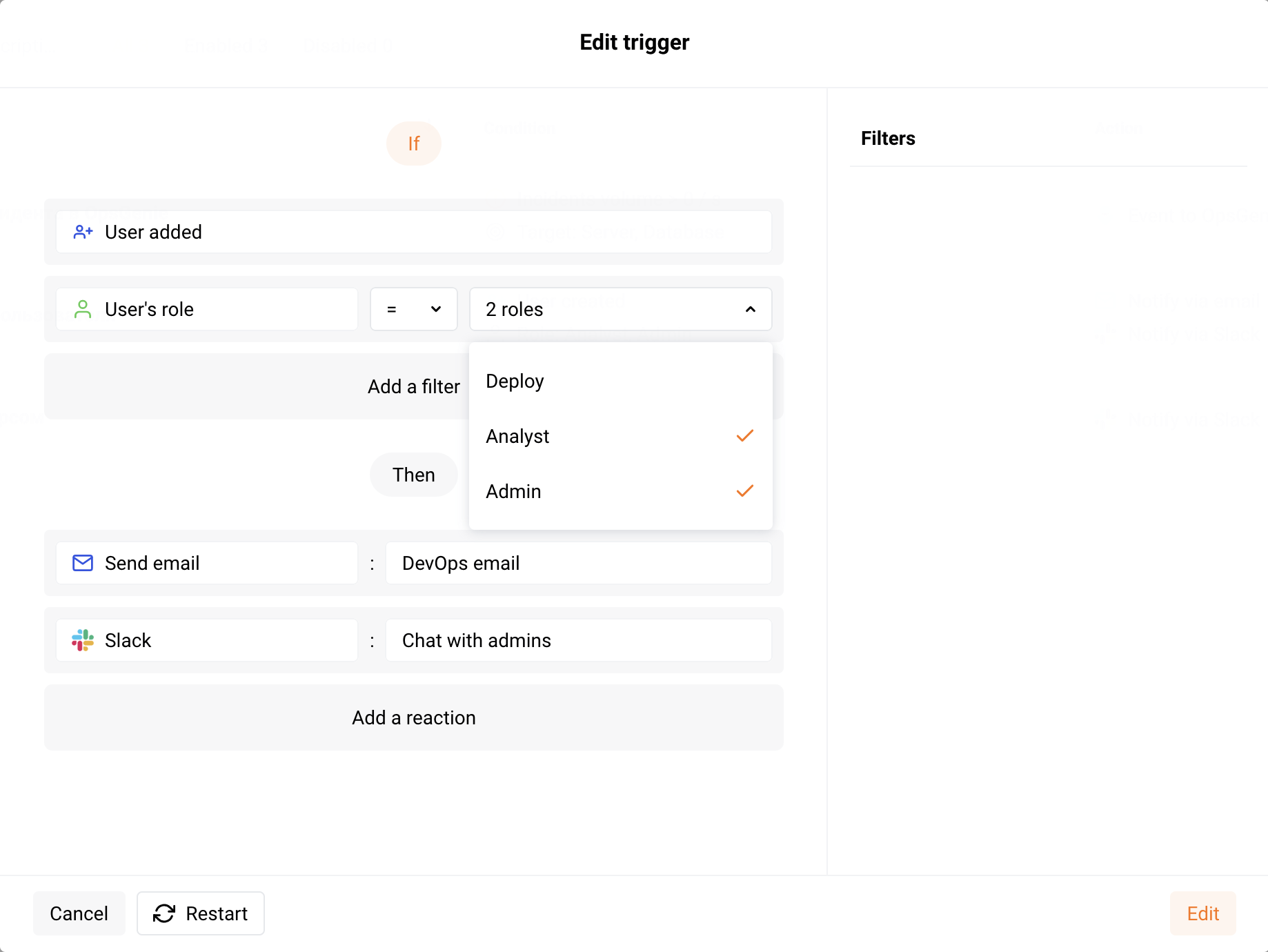
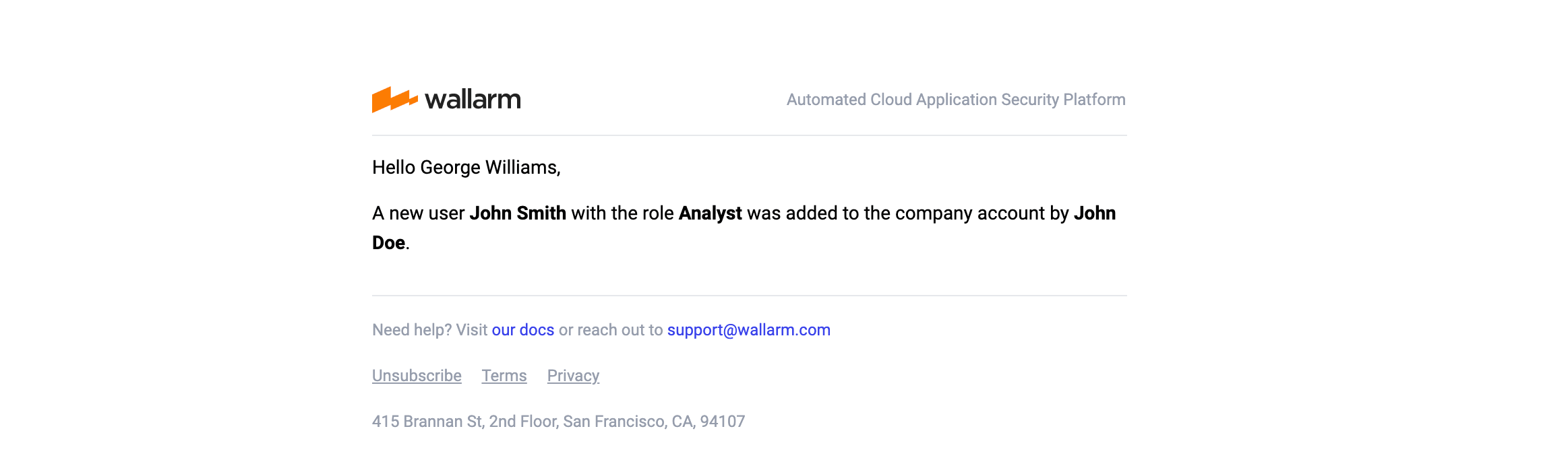
If a new user with the **Administrator** or **Analyst** role is added to the company account in Wallarm Console, notification about this event will be sent to the email address specified in the integration and to the Slack channel.
**To test the trigger:**
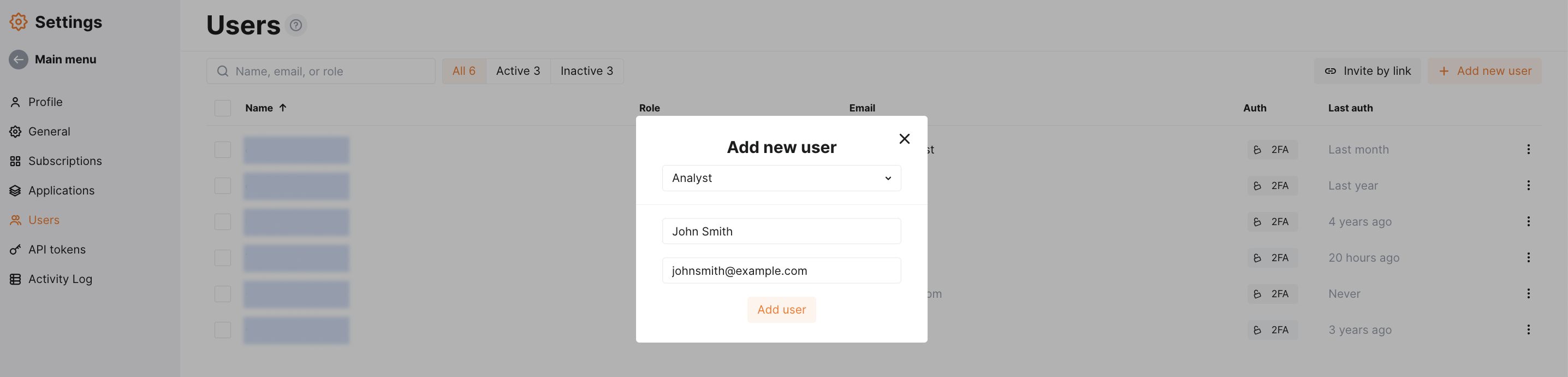
1. Open the Wallarm Console → **Settings** → **Users** and add a new user. For example:
2. Open your email Inbox and check that the following message received:
3. Open the Slack channel and check that the following notification from the user **wallarm** received:
```
[Wallarm] Trigger: New user was added to the company account
Notification type: create_user
A new user John Smith with the role Analyst was added to the company account by John Doe .
This notification was triggered by the "Added user" trigger.
Client: TestCompany
Cloud: EU
```
* `John Smith` and `johnsmith@example.com` is information about the added user
* `Analyst` is the role of the added user
* `John Doe` and `johndoe@example.com` is information about the user who added a new user
* `Added user` is the trigger name
* `TestCompany` is the name of your company account in Wallarm Console
* `EU` is the Wallarm Cloud where your company account is registered
## Disabling and deleting an integration
You can delete or temporarily disable the integration. While deleting stops sending notifications and completely deletes all configuration, disabling just stops sending notifications which you can at any moment re-enable with the same settings.
If for the integration the **System related** events are selected to trigger notifications, Wallarm will notify about both of these actions.
## System unavailability and incorrect integration parameters
Notifications to the system are sent via requests. If the system is unavailable or integration parameters are configured incorrectly, the error code is returned in the response to the request.
If the system responds to Wallarm request with any code other than `2xx`, Wallarm resends the request with the interval until the `2xx` code is received:
* The first cycle intervals: 1, 3, 5, 10, 10 seconds
* The second cycle intervals: 0, 1, 3, 5, 30 seconds
* The third cycle intervals: 1, 1, 3, 5, 10, 30 minutes
If the percentage of unsuccessful requests reaches 60% in 12 hours, the integration is automatically disabled. If you receive system notifications, you will get a message about automatically disabled integration.