# Running Wallarm on Heroku
Wallarm can protect web applications and APIs deployed on the [Heroku](https://www.heroku.com/) cloud platform. This guide walks you through the process of running the Wallarm node on Heroku to analyze traffic in real-time.
At present, there is no official Docker image for Heroku from Wallarm. So, this guide explains how to create and run your own using our [all-in-one installer](https://docs.wallarm.com/installation/nginx/all-in-one.md).
## Requirements
* [Docker](https://docs.docker.com/engine/install/) installed on your host system
* Docker account for pushing Heroku Wallarm Docker image
* [Heroku CLI](https://devcenter.heroku.com/articles/heroku-cli) installed on your host system
* Applications or APIs running on Heroku web dynos
* Administrator access to Wallarm Console in the [US Cloud](https://us1.my.wallarm.com/) or [EU Cloud](https://my.wallarm.com/), or [ME Cloud](https://me1.my.wallarm.com/)
* Access to `https://meganode.wallarm.com` to download all-in-one Wallarm installer
* Access to the Wallarm API host for your Cloud: `https://us1.api.wallarm.com`, `https://api.wallarm.com`, or `https://me1.api.wallarm.com`
* Access to the IP addresses and their corresponding hostnames (if any) listed below. This is needed for downloading updates to attack detection rules and [API specifications](https://docs.wallarm.com/api-specification-enforcement/overview.md), as well as retrieving precise IPs for your [allowlisted, denylisted, or graylisted](https://docs.wallarm.com/user-guides/ip-lists/overview.md) countries, regions, or data centers
**US Cloud:**
```
node-data0.us1.wallarm.com - 34.96.64.17
node-data1.us1.wallarm.com - 34.110.183.149
us1.api.wallarm.com - 35.235.66.155
34.102.90.100
34.94.156.115
35.235.115.105
```
**EU Cloud:**
```
node-data1.eu1.wallarm.com - 34.160.38.183
node-data0.eu1.wallarm.com - 34.144.227.90
api.wallarm.com - 34.90.110.226
```
**ME Cloud:**
```
node-data0.me1.wallarm.com - 34.166.82.208
node-data1.me1.wallarm.com - 34.166.82.208
me1.api.wallarm.com - 34.166.82.208
```
## Step 1: Prepare Wallarm Docker configuration
To deploy Wallarm's Docker image on Heroku, start by creating the necessary configuration files for the image build process. Follow these steps:
1. On your local system, create a directory specifically for Wallarm Docker configurations and proceed to it.
1. Craft an `nginx.conf` file that includes NGINX and [Wallarm configurations](https://docs.wallarm.com/admin-en/configure-parameters-en.md). Since the Docker image will be based on the [NGINX-compatible all-in-one installer](https://docs.wallarm.com/installation/nginx/all-in-one.md), ensure NGINX is configured appropriately.
Here is the template with a basic configuration that runs the Wallarm node in the monitoring mode:
```
daemon off;
worker_processes auto;
load_module /usr/lib/nginx/modules/ngx_http_wallarm_module.so;
pid /tmp/nginx.pid;
include /etc/nginx/modules-enabled/*.conf;
events {
worker_connections 768;
use epoll;
accept_mutex on;
}
http {
gzip on;
gzip_comp_level 2;
gzip_min_length 512;
gzip_proxied any; # Heroku router sends Via header
proxy_temp_path /tmp/proxy_temp;
client_body_temp_path /tmp/client_temp;
fastcgi_temp_path /tmp/fastcgi_temp;
uwsgi_temp_path /tmp/uwsgi_temp;
scgi_temp_path /tmp/scgi_temp;
sendfile on;
tcp_nopush on;
tcp_nodelay on;
keepalive_timeout 65;
types_hash_max_size 2048;
server_tokens off;
# server_names_hash_bucket_size 64;
# server_name_in_redirect off;
include /etc/nginx/mime.types;
default_type application/octet-stream;
access_log /var/log/nginx/access.log;
error_log /var/log/nginx/error.log;
# Main Heroku app
server {
listen $PORT default_server;
server_name _;
wallarm_mode monitoring;
location / {
proxy_pass http://unix:/tmp/nginx.socket;
# Heroku apps are always behind a load balancer, which is why we trust all IPs
set_real_ip_from 0.0.0.0/0;
real_ip_header X-Forwarded-For;
real_ip_recursive off;
proxy_redirect off;
proxy_set_header Host $http_host;
proxy_set_header "Connection" "";
}
error_page 403 /403.html;
location = /403.html {
root /usr/share/nginx/html;
internal;
}
}
# Wallarm status helper (localhost-only)
server {
listen 127.0.0.8:$PORT;
server_name localhost;
allow 127.0.0.0/8;
deny all;
wallarm_mode off;
disable_acl "on";
access_log off;
location ~/wallarm-status$ {
wallarm_status on;
}
}
}
```
1. Create the following `entrypoint.sh` file with directives for the Wallarm Docker image:
```
#!/bin/bash
set -e
log() {
local msg="$1"
local level="$2"
if [ -z "$level" ]; then
level="INFO"
fi
echo "[$(date '+%Y-%m-%d %H:%M:%S')] [$level] $msg"
}
log "Script execution started."
# Ensure necessary directories exist
log "Ensuring necessary directories exist for supervisord."
mkdir -p /opt/wallarm/var/log/wallarm
mkdir -p /opt/wallarm/run/supervisor
if [ ! -z "$WALLARM_API_TOKEN" ]; then
log "WALLARM_API_TOKEN is set, checking configuration."
if [[ $DYNO == web.* ]]; then
log "Heroku dyno type [$DYNO] is 'web', proceeding with Wallarm configuration."
# Propagate env vars
log "Propagating environment variables from /opt/wallarm/env.list."
set -a
source /opt/wallarm/env.list
if [ -s /etc/wallarm-override/env.list ]; then
log "Propagating environment variables from /etc/wallarm-override/env.list."
source /etc/wallarm-override/env.list
fi
set +a
# Register Wallarm node in the Cloud
log "Registering Wallarm node in the cloud."
/opt/wallarm/register-node
# Configure PORT in nginx config
log "Replacing \$PORT in Nginx configuration with value $PORT."
sed -i "s/\$PORT/${PORT}/g" /etc/nginx/nginx.conf
# Verify that PORT was replaced successfully
log "Checking if the PORT in Nginx configuration was successfully replaced."
if cat /etc/nginx/nginx.conf | grep -q "listen ${PORT}"; then
log "Successfully replaced PORT in Nginx configuration with value $PORT."
else
log "Failed to replace PORT in Nginx configuration!" "ERROR"
exit 1
fi
# Export $PORT as $NGINX_PORT (required for the `export-metrics` script)
log "Exporting PORT as NGINX_PORT for Wallarm metrics."
export NGINX_PORT="$PORT"
# Start all Wallarm services and NGINX under supervisord
log "Starting all Wallarm services and NGINX under supervisord."
/opt/wallarm/usr/bin/python3.10 /opt/wallarm/usr/bin/supervisord -c /opt/wallarm/etc/supervisord.conf --loglevel=debug
# Check if supervisord started successfully
log "Checking if supervisord process is running."
if pgrep -f "supervisord" > /dev/null; then
log "supervisord process started successfully."
else
log "Failed to start supervisord process!" "ERROR"
exit 1
fi
# Check the status of services managed by supervisord
log "Checking the status of all services managed by supervisord every 10s during 3 minutes."
timeout=0
while (/opt/wallarm/usr/bin/supervisorctl -c /opt/wallarm/etc/supervisord.conf status | grep -qv "RUNNING");
do
log "One or more services failed to start!" "ERROR"
log "Waiting 10s and check it again"
sleep 10s
timeout=$(( timeout + 10 ))
if [ $timeout -ge 180 ];
then
log "One or more services failed to start!" "ERROR"
/opt/wallarm/usr/bin/supervisorctl -c /opt/wallarm/etc/supervisord.conf status
exit 1
fi
done
log "All services are running successfully."
log "Wallarm configuration completed."
else
log "Heroku dyno type [$DYNO] is not 'web', skipping Wallarm configuration."
fi
else
log "WALLARM_API_TOKEN is not set, executing CMD."
fi
# Execute the CMD command
log "Executing command: $@"
exec "$@"
log "Script execution finished."
```
1. Set the `entrypoint.sh` file permissions to `-rwxr-xr-x` by executing the following command:
```
chmod 755 entrypoint.sh
```
1. Design a `403.html` file that displays a well-structured page for requests that Wallarm will block. You can copy the following:
```html
Forbidden
Your request has been blocked
If you think this is a mistake, please get in touch with the app's support team.
```
1. Create a `Dockerfile` to describe the build process for Wallarm's Docker image:
```dockerfile
FROM ubuntu:22.04
ARG VERSION="6.12.1"
ENV PORT=3000
ENV WALLARM_LABELS="group=heroku"
ENV WALLARM_API_TOKEN=
ENV WALLARM_API_HOST="us1.api.wallarm.com"
RUN apt-get -qqy update && apt-get -qqy install nginx curl && apt-get clean
# Download and unpack the Wallarm all-in-one installer
RUN curl -o /install.sh "https://meganode.wallarm.com/$(echo "$VERSION" | cut -d '.' -f 1-2)/wallarm-$VERSION.x86_64-glibc.sh" \
&& chmod +x /install.sh \
&& /install.sh --noexec --target /opt/wallarm \
&& rm -f /install.sh \
&& cd /opt/wallarm \
&& chmod +x pick-module.sh \
&& SELECTED_MODULE="$(./pick-module.sh)" \
&& echo "Selected module => $SELECTED_MODULE" \
# Copy wlrm-module into NGINX's module directory
&& cp "$SELECTED_MODULE" /usr/lib/nginx/modules/ngx_http_wallarm_module.so \
&& mkdir -p /usr/local/lib \
&& mv /opt/wallarm/modules/libwallarm.so* -t "/usr/local/lib/" \
&& rm -rf /opt/wallarm/modules
# Run supervisord in background. Our foreground process is the Heroku app itself
RUN sed -i '/nodaemon=true/d' /opt/wallarm/etc/supervisord.conf
# Add NGINX to supervisord
RUN printf "\n\n[program:nginx]\ncommand=/usr/sbin/nginx\nautorestart=true\nstartretries=4294967295\n" | tee -a /opt/wallarm/etc/supervisord.conf
# Heroku runs everything under an unprivileged user (dyno:dyno), so we need to grant it access to Wallarm directories
RUN find /opt/wallarm -type d -exec chmod 777 {} \;
# Copy NGINX configuration
COPY nginx.conf /etc/nginx/nginx.conf
# Herokuesque 403 error page
COPY 403.html /usr/share/nginx/html/403.html
# Add entrypoint.sh
COPY entrypoint.sh /entrypoint.sh
# Let entrypoint modify the config under dyno:dyno and redirect NGINX logs to console
RUN chmod +x /entrypoint.sh \
&& chmod 666 /etc/nginx/nginx.conf \
&& chmod 777 /etc/nginx/ \
&& ln -sf /dev/stdout /var/log/nginx/access.log \
&& ln -sf /dev/stderr /var/log/nginx/error.log
ENTRYPOINT ["/entrypoint.sh"]
```
## Step 2: Build the Wallarm Docker image for Heroku
Execute the following commands within the previously created directory:
```
docker build -t wallarm-heroku:6.12.1 .
docker login
docker tag wallarm-heroku:6.12.1 /wallarm-heroku:6.12.1
docker push /wallarm-heroku:6.12.1
```
## Step 3: Run the built Docker image on Heroku
To deploy the image on Heroku:
1. Navigate to the root of your application directory to perform the subsequent operations.
1. Construct a `Dockerfile` which will include the installation of necessary dependencies specific to your app's runtime. For a Node.js application, use the following template:
```dockerfile
FROM /wallarm-heroku:6.12.1
ENV NODE_MAJOR=20
# Install NodeJS v20 from NodeSource
RUN apt-get update \
&& apt-get install -qqy ca-certificates curl gnupg \
&& mkdir -p /etc/apt/keyrings \
&& curl -fsSL https://deb.nodesource.com/gpgkey/nodesource-repo.gpg.key | gpg --dearmor -o /etc/apt/keyrings/nodesource.gpg \
&& echo "deb [signed-by=/etc/apt/keyrings/nodesource.gpg] https://deb.nodesource.com/node_$NODE_MAJOR.x nodistro main" | tee /etc/apt/sources.list.d/nodesource.list \
&& apt-get update \
&& apt-get install nodejs -qqy \
&& apt-get clean
ADD . /opt/webapp
WORKDIR /opt/webapp
# Install dependencies and build the app
RUN npm install --omit=dev
ENV npm_config_prefix /opt/webapp
# Note that in private spaces the `run` section of heroku.yml is ignored
# See: https://devcenter.heroku.com/articles/build-docker-images-heroku-yml#known-issues-and-limitations
CMD ["npm", "run", "start"]
```
1. Create a `heroku.yml` configuration file with the following content:
```yaml
build:
docker:
web: Dockerfile
```
1. Adapt your application to listen on `/tmp/nginx.socket` rather than `$PORT` because `$PORT` is utilized by NGINX. For instance, the configuration may look as follows:
```js hl_lines="4-5"
// app.js
const app = require('express')()
let port = process.env.PORT || 3000 // If Wallarm is not configured, listen on $PORT
if(process.env.WALLARM_API_TOKEN) port = '/tmp/nginx.socket' // Wallarm is configured
app.listen(port, (err) => {
if (err) throw err
console.log(`> App is listening on ${port}`)
})
app.get('/', (req, res) => {
res.send('This app is protected by Wallarm')
})
```
1. Generate a filtering node token of the [appropriate type](https://docs.wallarm.com/user-guides/nodes/nodes.md#api-and-node-tokens-for-node-creation) to link the Wallarm node instance to the Wallarm Cloud:
**API token:**
1. Open Wallarm Console → **Settings** → **API tokens** in the [US Cloud](https://us1.my.wallarm.com/settings/api-tokens) or [EU Cloud](https://my.wallarm.com/settings/api-tokens), or [ME Cloud](https://me1.my.wallarm.com/settings/api-tokens).
1. Find or create API token with the `Node deployment/Deployment` usage type.
1. Copy this token.
1. Specify the node group name to add the Wallarm node to in the following environment variable:
```
heroku config:set WALLARM_LABELS=group=
```
**Node token:**
1. Open Wallarm Console → **Nodes** in either the [US Cloud](https://us1.my.wallarm.com/nodes) or [EU Cloud](https://my.wallarm.com/nodes), or [ME Cloud](https://me1.my.wallarm.com/nodes).
1. Create a filtering node with the **Wallarm node** type and copy the generated token.
1. Establish the parameters for connecting the node to the Cloud within the relevant variables:
**US Cloud:**
```
heroku config:set WALLARM_API_TOKEN=
```
**EU Cloud:**
```
heroku config:set WALLARM_API_HOST=api.wallarm.com
heroku config:set WALLARM_API_TOKEN=
```
**ME Cloud:**
```
heroku config:set WALLARM_API_HOST=me1.api.wallarm.com
heroku config:set WALLARM_API_TOKEN=
```
1. Push your application to trigger a restart, thereby deploying the Wallarm node:
```
git add Dockerfile heroku.yml app.js
git commit -m "Add Wallarm Docker"
heroku stack:set container
git push heroku
```
## Step 4: Test the deployment
To confirm that the deployment is functional, initiate a test attack using the [Path Traversal](https://docs.wallarm.com/attacks-vulns-list.md#path-traversal) exploit:
```
curl http:///etc/passwd
```
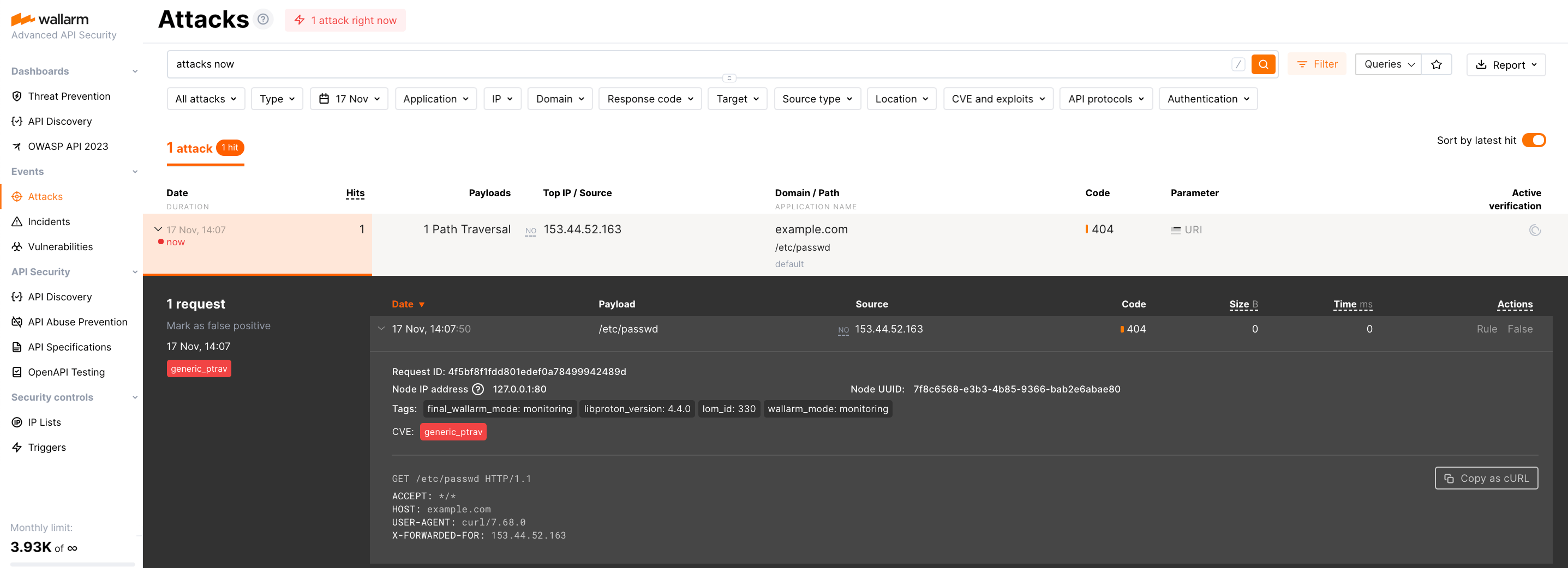
Since the node operates in the **monitoring** [filtration mode](https://docs.wallarm.com/admin-en/configure-wallarm-mode.md#available-filtration-modes) by default, the Wallarm node will not block the attack but will register it. To check that the attack has been registered, proceed to Wallarm Console → **Attacks**:
## Debug
Should you face any difficulties with the Wallarm base Docker image, inspect the Heroku logs for potential error messages:
```
heroku logs --tail
```
If you need assistance during the deployment, contact the [Wallarm support team](mailto:support@wallarm.com).