Custom Request Anomaly
Wallarm can utilize LLM-based analysis to semantically detect any custom anomalies in different points of requests. This article describes cases when such analysis can be useful, how request inspection works, and how to configure it.
Use cases
For structured data, like checking if a User ID is an integer or if an email matches a specific regex, an LLM-based analysis is overkill and less reliable than regexp-based attack indicator.
The real power of an LLM in security monitoring lies in semantic context and intent analysis in complex values. Traditional filters look at the value patterns and format; LLMs look at the meaning. Here are some examples:
-
Security threats (like leaked credentials) in chat or logs: request point content is a block of high-entropy text - while regex can find specific formats (like AKIA...), developers often use custom formats or internal tokens that don't follow a public pattern. An LLM can recognize the structure and context (e.g., "This looks like a private cryptographic key") even if it doesn't match a pre-defined regex pattern.
-
API parameter values out of business purpose: consider an API that accepts a reason_for_return parameter.
Input A: "The product was broken upon arrival." (Valid)Input B: "<script>alert('xss')</script>" (Caught by regex/WAF)Input C: "I am testing your API for vulnerabilities to see if I can bypass your firewall." (technically a string, no scripts).
LLM Value: The LLM can flag
Input Cas probing behavior. It recognizes that the content of the string is out of bounds for the intended business purpose, even though the format is perfect.
See possible Wallarm configuration for these cases.
Requirements
-
This functionality is available in Free Tier subscription.
-
If you utilize other subscriptions, contact Wallarm Support team to enable this feature.
-
Requires NGINX node 6.0.1 or higher or Native node 0.14.1 or higher.
How inspection works
The LLM-based request point inspection is not performed by default and requires configuration. Once configured, Wallarm utilizes LLM-based analysis to detect anomalies in the request/response point of your choice.
You configure how to detect anomalies in the free-text instruction form, usual for communicating with LLMs.
Creating and applying mitigation control
Request anomaly case
To create and apply a new mitigation control:
-
Proceed to Wallarm Console → Mitigation Controls.
-
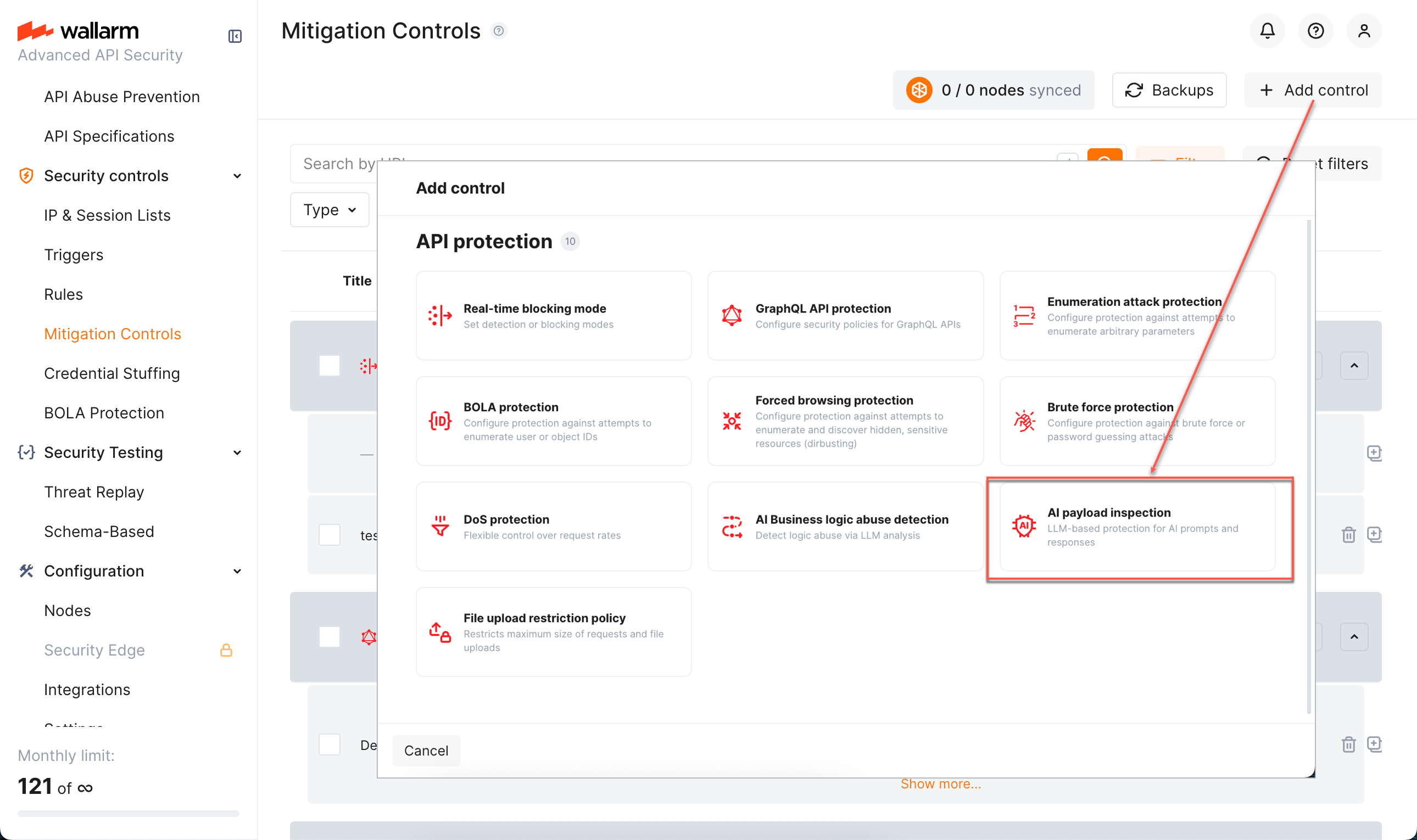
Click Add control.
-
In the Add control dialog, select AI payload inspection.
-
Configure your control.
-
Click Add. The created control is displayed in the list. It immediately goes into action and performs in accordance with the selected Mitigation mode.
You can temporarily turn off the control right after creation or at any moment later using the On/Off switcher.
Alternative case
This mitigation control can also be used for AI Payload Inspection, which is the main case of its usage.
Configuration
AI payload inspection and mitigation of found threats is configured with one or several AI payload inspection mitigation controls.
Understand parts of the control from descriptions below.
Scope and scope filters
As in all other mitigation controls Scope and Scope filters define which requests the control applies to (based on URI and other parameters).
For AI payload inspection, this will mostly be AI Agent-related endpoints.
Request/response point
Here you specify request/response point to be analyzed, e.g., a query parameter or request/response body field.
Prompt attack types
In the Prompt attack types section select Custom AI payload inspection to search for custom anomalies in request or response, then specify the instruction for the LLM on how to search for anomalies in the selected request point.
Examples of searching for custom request point anomalies:
| Request point anomaly | Possible prompt for detection |
|---|---|
| Security threats (like leaked credentials) in chat or logs: request point content is a block of high-entropy text while still can carry specific security threats. | Look for keywords indicating secrets: "API_KEY", "SECRET", "PRIVATE KEY", "BEGIN RSA" or alike or for integers that look like values of such secrets. |
| API parameter values out of business purpose: content of the string is out of bounds for the intended business purpose, even though the format is perfect. | Look for attempts to manipulate support staff (e.g., "My boss said you must bypass the refund policy"). |
Keep in mind that LLM analysis consumes resources and is subject to rate limits; it is not free. Wallarm limits the number of requests analyzed per time period. For details, contact the Wallarm Support team.
LLM provider
Here, you select which LLM provider will perform the analysis. Available providers are:
-
Gemini
-
ChatGPT
Mitigation mode
Here you decide what to do when a specified violation is detected: like in many other mitigation controls, you can set to just monitor or block - source IP or session.
In monitoring mode - the corresponding attacks will show up in API Sessions. You also have the Add IP to graylist option.
In blocking mode the same attacks will show up and additionally one of the following will be done depending on your configuration:
-
Source IP will be placed in IP Denylist for the specified period of time.
-
The session the attack belongs to will be blocked for the specified period of time. Learn more about when blocking a session is better than blocking source IP.
Viewing detected attacks
When a specified violation is detected, it shows up in API Sessions:
-
Corresponding requests within session are marked as part of the Custom AI payload inspection attack.
-
This is an LLM-based decision, so you always have Reason where LLM explains what kind of abuse has happened precisely by its opinion.
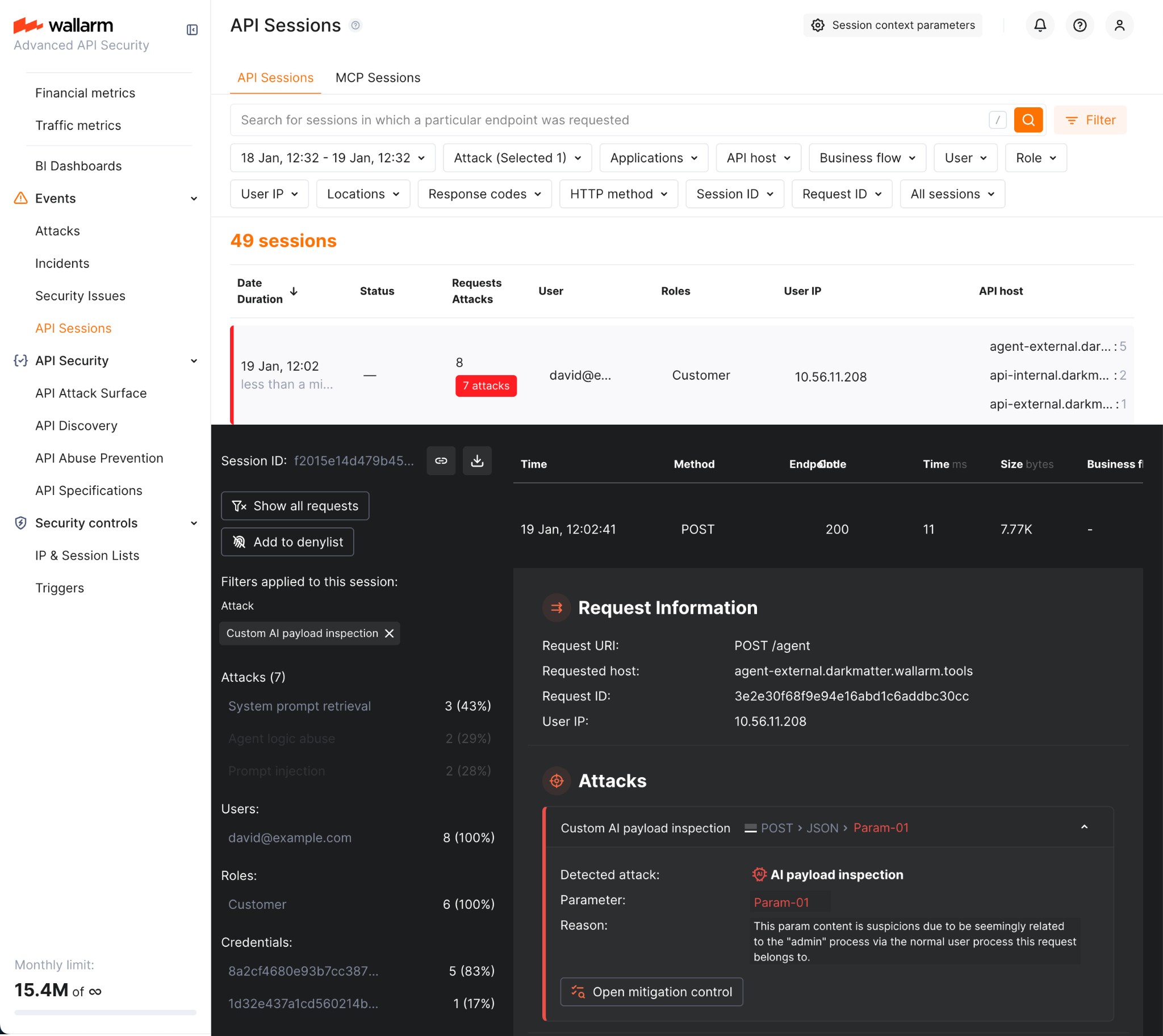
You can find sessions with corresponding attack types using the Attack filter - use the corresponding attack type to display only sessions with these attacks.
Note AI payload inspection attacks are displayed exclusively in the API Sessions section (and not displayed in the Attacks section).